
Asus X54C driver and firmware

Related Asus X54C Manual Pages
Download the free PDF manual for Asus X54C and other Asus manuals at ManualOwl.com
User Manual - Page 3
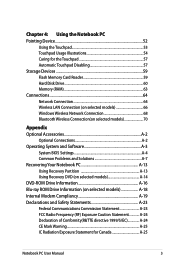
... 57 Storage Devices 59 Flash Memory Card Reader 59 Hard Disk Drive 60 Memory (RAM 63 Connections...64 Network Connection 64 Wireless LAN Connection (on selected models 66 Windows Wireless Network Connection 68 Bluetooth Wireless Connection(on selected models 70
Appendix Optional Accessories A-2
Optional Connections A-2 Operating System and Software A-3
System BIOS Settings A-4 Common...
User Manual - Page 17
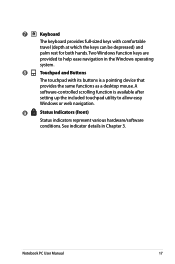
... with its buttons is a pointing device that
provides the same functions as a desktop mouse. A
software-controlled scrolling function is available after
setting up the included touchpad utility to allow easy
Windows or web navigation.
9
Status Indicators (front)
Status indicators represent various hardware/software
conditions. See indicator details in Chapter 3.
Notebook PC User Manual
17
User Manual - Page 20
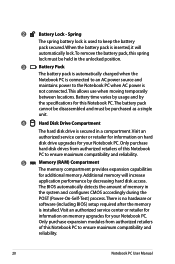
... performance by decreasing hard disk access.
The BIOS automatically detects the amount of memory in
the system and configures CMOS accordingly during the
POST (Power-On-Self-Test) process. There is no hardware or
software (including BIOS) setup required after the memory
is installed. Visit an authorized service center or retailer for
information on memory upgrades for your Notebook PC...
User Manual - Page 22
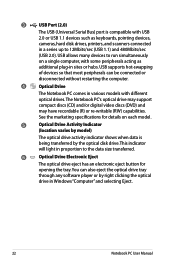
...The USB (Universal Serial Bus) port is compatible with USB
2.0 or USB 1.1 devices such as keyboards, pointing devices,
cameras, hard disk drives, printers, and scanners connected
in a series up to 12Mbits/sec (USB 1.1) and 480Mbits/sec
(USB 2.0). USB allows many devices to run simultaneously
on a single computer, with some peripherals acting as
additional plug-in sites or hubs. USB supports...
User Manual - Page 34
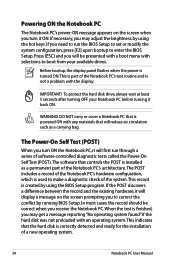
... keys. If you need to run the BIOS Setup to set or modify the system configuration, press [F2] upon bootup to enter the BIOS Setup. Press [ESC] and you will be presented with a boot menu with selections to boot from your available drives.
Before bootup, the display panel flashes when the power is turned ON.This is part of...
User Manual - Page 35
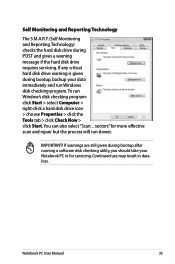
...drive requires servicing. If any critical hard disk drive warning is given during bootup, backup your data immediately and run Windows disk checking program. To run Window's disk checking program: click Start > select Computer > right-click a hard disk drive icon > choose Properties > click the Tools tab > click Check Now > click Start.You can also select "Scan ... sectors" for more effective scan...
User Manual - Page 38
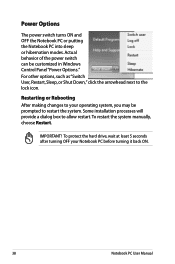
... can be customized in Windows Control Panel "Power Options." For other options, such as "Switch User, Restart, Sleep, or Shut Down," click the arrowhead next to the lock icon.
Restarting or Rebooting After making changes to your operating system, you may be prompted to restart the system. Some installation processes will provide a dialog box...
User Manual - Page 42
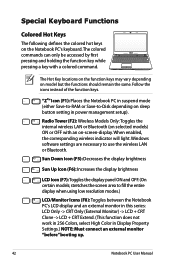
... mode (either Save-to-RAM or Save-to-Disk depending on sleep button setting in power management setup).
Radio Tower (F2): Wireless Models Only:Toggles the internal wireless LAN or Bluetooth (on selected models) ON or OFF with an on-screen-display. When enabled, the corresponding wireless indicator will light. Windows software settings are necessary to use the wireless LAN or Bluetooth.
Sun Down...
User Manual - Page 43
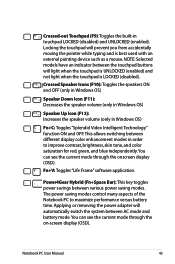
... and is best used with an external pointing device such as a mouse. NOTE: Selected models...display (OSD).
Fn+V: Toggles "Life Frame" software application.
Power4Gear Hybrid (Fn+Space Bar): This key toggles power savings between various power saving modes. The power saving modes control many aspects of the Notebook PC to maximize performance versus battery time. Applying or removing the power adapter...
User Manual - Page 49
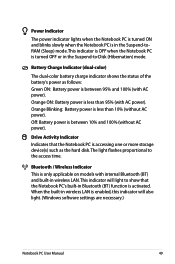
... between 10% and 100% (without AC power).
Drive Activity Indicator Indicates that the Notebook PC is accessing one or more storage device(s) such as the hard disk.The light flashes proportional to the access time.
Bluetooth / Wireless Indicator This is only applicable on models with internal Bluetooth (BT) and built-in wireless LAN. This indicator will light to show...
User Manual - Page 52
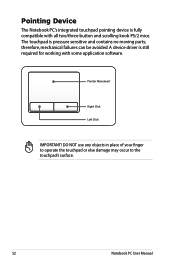
... and scrolling knob PS/2 mice. The touchpad is pressure sensitive and contains no moving parts; therefore, mechanical failures can be avoided. A device driver is still required for working with some application software.
Pointer Movement
Right Click Left Click
IMPORTANT! DO NOT use any objects in place of your finger to operate the touchpad...
User Manual - Page 63
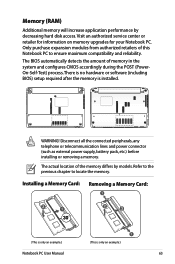
...-Test) process. There is no hardware or software (including BIOS) setup required after the memory is installed.
WARNING! Disconnect all the connected peripherals, any telephone or telecommunication lines and power connector (such as external power supply, battery pack, etc.) before installing or removing a memory. The actual location of the memory differs by models. Refer to the previous chapter...
User Manual - Page 64
Connections
The built-in network cannot be installed later as an upgrade. After purchase, network can be installed as an expansion card.
Network Connection
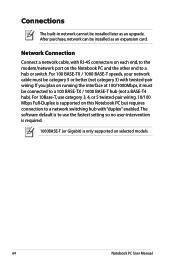
Connect a network cable, with RJ-45 connectors on each end, to the modem/network port on the Notebook PC and the other end to a hub or switch. For 100 BASE-TX / 1000 BASE-T speeds, your network cable must be category 5 or...
User Manual - Page 75
... of a pre-installed Microsoft Windows operating system. The choices and languages will depend on the territory.The levels of hardware and software support may vary depending on the installed operating system. The stability and compatibility of other operating systems cannot be guaranteed.
Support Software This Notebook PC comes with a support disc that provides BIOS, drivers and applications to...
User Manual - Page 79
... latest version and try again. 2. If updating the BIOS does not help, try better quality discs and
try again. 3. If the problem still exist, contact your local service center and
ask an engineer for assistance.
Unknown Reason - System Unstable Cannot wake up from the hibernation.
1. Remove upgraded parts (RAM, HDD, WLAN, BT) if they were installed after...
User Manual - Page 82
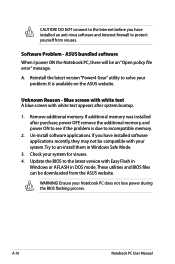
... to incompatible memory.
2. Un-install software applications. If you have installed software applications recently, they may not be compatible with your system.Try to un-install them in Windows Safe Mode.
3. Check your system for viruses. 4. Update the BIOS to the latest version with Easy Flash in
Windows or AFLASH in DOS mode. These utilities and BIOS files can be downloaded from the ASUS website...
User Manual - Page 83
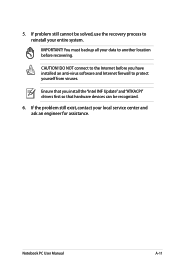
... to another location before recovering.
CAUTION! DO NOT connect to the Internet before you have installed an anti-virus software and Internet firewall to protect yourself from viruses.
Ensure that you install the "Intel INF Update" and "ATKACPI" drivers first so that hardware devices can be recognized.
6. If the problem still exist, contact your local service center and ask an...
User Manual - Page 84
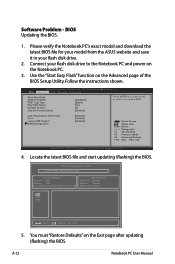
Software Problem - BIOS Updating the BIOS.
1. Please verify the Notebook PC's exact model and download the latest BIOS file for your model from the ASUS website and save it in your flash disk drive.
2. Connect your flash disk drive to the Notebook PC and power on the Notebook PC.
3. Use the "Start Easy Flash" function on the Advanced page of the BIOS Setup Utility. Follow the instructions shown....
User Manual - Page 85
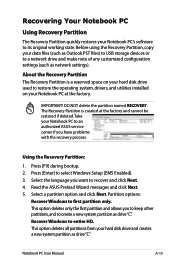
.... Before using the Recovery Partition, copy your data files (such as Outlook PST files) to USB storage devices or to a network drive and make note of any customized configuration settings (such as network settings).
About the Recovery Partition The Recovery Partition is a reserved space on your hard disk drive used to restore the operating system, drivers, and utilities installed on your Notebook...
User Manual - Page 86
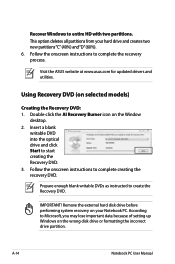
..."C"(40%) and"D"(60%). 6. Follow the onscreen instructions to complete the recovery process.
Visit the ASUS website at www.asus.com for updated drivers and utilities.
Using Recovery DVD (on selected models)
Creating the Recovery DVD: 1. Double-click the AI Recovery Burner icon on the Window
desktop. 2. Insert a blank
writable DVD into the optical drive and click Start to start creating the...