
Canon imageCLASS D760 driver and firmware

Related Canon imageCLASS D760 Manual Pages
Download the free PDF manual for Canon imageCLASS D760 and other Canon manuals at ManualOwl.com
iC D760-D780 spec - Page 2
...
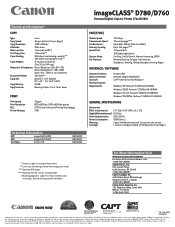
Canon L50
8979A001 8979A012 6812A001
imageCLASS® D780/D760
Personal Digital Copier | Printer | Fax (D780)
FAX (D780)
Modem Speed: Transmission Speed: Fax Resolution: Memory Capacity: Speed Dials:
Receive Mode: Fax Features:
33.6 Kbps 3 Seconds/page**** Up to 406 x 392 dpi (Ultra Fine Mode) Up to 255 pages**** 12 Speed dials 100 Coded speed dials Fax Only, Fax/Tel Switch, Manual...
imageCLASS D780 Fax Guide - Page 2
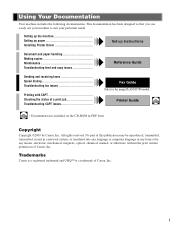
...Setting up paper Installing Printer Driver
Set-up Instructions
Document and paper handling Making copies Maintenance Troubleshooting feed and copy issues
Reference Guide
Sending and receiving faxes Speed dialing Troubleshooting fax issues
Printing with CAPT Checking the status of a print job Troubleshooting CAPT issues
Fax Guide Only for the imageCLASS D780 model
Printer Guide...
imageCLASS D780 Fax Guide - Page 6
...Installation Requirements for Canon Facsimile Equipment
A. Location
Supply a suitable table, cabinet or desk. See the Reference Guide for the machine's dimensions and weight.
B. Phone Line Requirements
1. Only a single line, touch-tone or rotary telephone set is to be used. 2. Order an RJ11-C modular jack (USOC code), which should be installed...may cause a fax error.
C. Power Requirements
This ...
imageCLASS D780 Fax Guide - Page 7
... the procedures described in this Fax Guide, disconnect the equipment from the telephone line and unplug the power cord. The telephone line should not be reconnected or the power cord plugged in until the problem is completely resolved. Users should contact Canon Authorized Service Facilities for servicing of equipment. Information regarding Authorized Service Facility locations can be obtained...
imageCLASS D780 Fax Guide - Page 8
...Installation Requirements for Canon Facsimile Equipment
A. Location
Supply a suitable table, cabinet, or desk. See the Reference Guide for the machine's dimensions and weight.
B. Order Information
1. Provide only a single-line to touch-tone or rotary telephone set terminated with a standard 4-pin modular phone..., which may cause a fax error.
C. Power Requirements
The power outlet should be a three...
imageCLASS D780 Fax Guide - Page 9
... technical support, the latest driver downloads and answers to frequently
asked questions (www.canon.ca) • Automated interactive telephone support on most current products 24 hours, 7 days a week (1-800-652-2666). • Free live technical support Monday-Friday (excluding holidays) for products still under warranty (1-800-652-
2666) • The location of the authorized service facility...
imageCLASS D780 Fax Guide - Page 73
..., and replace if necessary. (→ Reference Guide)
No paper may be loaded in the cassette. • Make sure paper is loaded in the cassette. (→ Set-up Instructions)
❚ Faxed images are blotched or uneven.
The telephone lines may be in poor condition, or you may have a bad connection. • Error Correction Mode (ECM) sending/receiving should...
imageCLASS D780/D760/D761 Reference Guide - Page 2
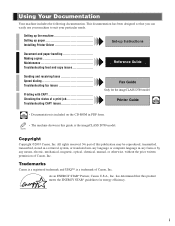
...Setting up paper Installing Printer Driver
Set-up Instructions
Document and paper handling Making copies Maintenance Troubleshooting feed and copy issues
Reference Guide
Sending and receiving faxes Speed dialing Troubleshooting fax issues
Printing with CAPT Checking the status of a print job Troubleshooting CAPT issues
Fax Guide Only for the imageCLASS D780 model
Printer Guide...
imageCLASS D780/D760/D761 Reference Guide - Page 3
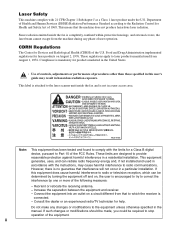
... with the limits for a Class B digital device, pursuant to Part 15 of the FCC Rules. These limits are designed to provide reasonable protection against harmful interference in a residential installation. This equipment generates, uses, and can radiate radio frequency energy and, if not installed and used in accordance with the instructions, may cause harmful interference to...
imageCLASS D780/D760/D761 Reference Guide - Page 8
...Support
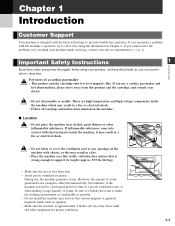
Your machine is designed with the latest technology to provide trouble-free operation. If you encounter a problem with the machine's operation, try to solve it by using the information in Chapter 6. If you cannot solve the problem or if you think your machine needs servicing, contact your service representative. (→ p. v)
Important Safety Instructions... install the machine near devices...
imageCLASS D780/D760/D761 Reference Guide - Page 11

... printed pages.
Inside View
OPERATION PANEL
Controls the machine.
PAPER CASSETTE
Holds plain paper.
CARTRIDGE COVER
Open it when you install the cartridge, or remove jammed paper.
CARTRIDGE
1-4
MULTI-PURPOSE TRAY
When copying on plain paper and other print media, pull out the paper tray and load paper in the multi-purpose tray.
RIGHT...
imageCLASS D780/D760/D761 Reference Guide - Page 47
...
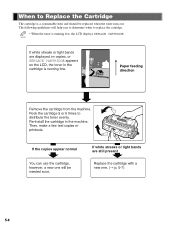
If white streaks or light bands are displayed on copies, or
REPLACE CARTRIDGE appears
on the LCD, the toner in the cartridge is running low.
Paper feeding direction
Remove the cartridge from the machine. Rock the cartridge 5 or 6 times to distribute the toner evenly. Re-install the cartridge in the machine. Then, make...
imageCLASS D780/D760/D761 Reference Guide - Page 51
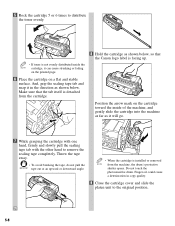
... itself is detached from the cartridge.
8 Hold the cartridge as shown below, so that the Canon logo label is facing up.
Position the arrow mark on the cartridge toward the inside of the... the IMPORTANT tape out at an upward or downward angle.
• When the cartridge is installed or removed NOTE from the machine, the drum's protective
shutter opens. Do not touch the photosensitive drum....
imageCLASS D780/D760/D761 Reference Guide - Page 54
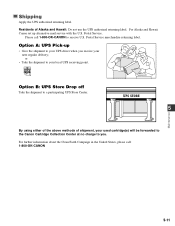
...: Do not use the UPS authorized returning label. For Alaska and Hawaii Canon set up alternative mail service with the U.S. Postal Service.
Please call 1-800-OK-CANON to receive U.S. Postal Service merchandise returning label.
Option A: UPS Pick-up
• Give the shipment to your UPS driver when you receive your next regular delivery; or
• Take the...
imageCLASS D780/D760/D761 Reference Guide - Page 56
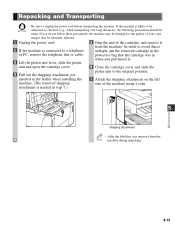
... of your copy
images may be adversely affected.
1 Unplug the power cord.
5...cable.
protective bag that the cartridge was in
3 Lift the platen unit lever, slide the platen
when you purchased it.
unit and open the cartridge cover.
6 Close the cartridge cover and slide the
4 Pull out the shipping attachment you
platen unit to the original position.
inserted in the holder when installing...
imageCLASS D780/D760/D761 Reference Guide - Page 59
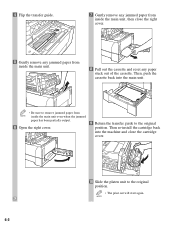
4 Flip the transfer guide.
7 Gently remove any jammed paper from inside the main unit, then close the right cover.
5 Gently remove ...unit even when the jammed
paper has been partially output.
6 Open the right cover.
9 Return the transfer guide to the original position. Then re-install the cartridge back into the machine and close the cartridge cover.
10 Slide the platen unit to the original ...
imageCLASS D780/D760/D761 Reference Guide - Page 61
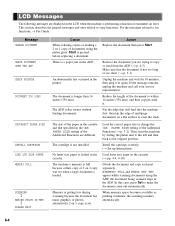
... performing a function or encounters an error. This section describes the general messages and ones related to copy functions. For the messages related to fax functions, → Fax Guide.
↔↔
Message CHANGE DOCUMENT
CHECK DOCUMENT OPEN THE ADF CHECK PRINTER
DOCUMENT TOO LONG
INCORRECT PAPER SIZE
INSTALL CARTRIDGE LOAD LTR SIZE PAPER MEMORY FULL
SCANNING MAKING SPACE IN MEM PLEASE...
imageCLASS D700 Series Set-up Instructions - Page 6
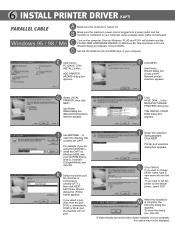
... 95, New Hardware or Device Wizard) dialog box appears. Click CANCEL.
D Set the CD-ROM into the CD-ROM drive of your computer.
E Click Canon PC1200/iC D700 INSTALL button.
ADD PRINTER WIZARD dialog box appears.
F Click NEXT.
Add Printer Wizard dialog box (Local printer/ Network printer) selection appears.
G Select LOCAL PRINTER, then click NEXT.
Add Printer Wizard dialog box (Manufacturers...
imageCLASS D700 Series Set-up Instructions - Page 7
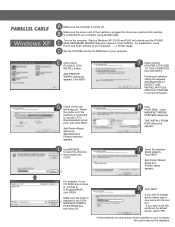
...dialog box appears. Click CANCEL. For installations, using PLUG and PLAY function of your computer, -----> Printer Guide.
D Set the CD-ROM into the CD-ROM drive of your computer.
E Click Canon PC1200/iC D700 INSTALL button.
ADD PRINTER WIZARD dialog box appears. Click NEXT.
F Select LOCAL PRINTER ATTACHED TO THIS COMPUTER, then click NEXT.
Printer port selection dialog box appears. AUTOMATICALLY...
imageCLASS D700 Series Set-up Instructions - Page 8
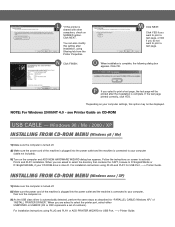
...if your CD-ROM drive is drive D. For installation instructions using PLUG and PLAY for USB Port, ----> Printer Guide.
INSTALLING FROM CD-ROM MENU (Windows 2000 / XP)
1) Make sure the computer is turned off. 2) Make sure the power cord of the machine is plugged into the power outlet and the machine is connected to your computer,
then turn the computer on. 3) As the USB class driver is automatically...