
Epson WorkForce 315 - All-in-One Printer driver and firmware

Related Epson WorkForce 315 Manual Pages
Download the free PDF manual for Epson WorkForce 315 and other Epson manuals at ManualOwl.com
Quick Guide - Page 1
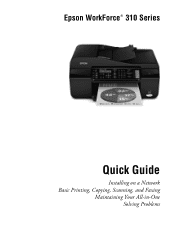
Epson WorkForce® 310 Series
Quick Guide
Installing on a Network Basic Printing, Copying, Scanning, and Faxing
Maintaining Your All-in-One Solving Problems
Quick Guide - Page 2
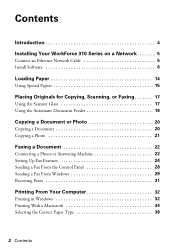
...a Network 5
Connect an Ethernet Network Cable 5 Install Software 6
Loading Paper 14
Using Special Papers 15
Placing Originals for Copying, Scanning, or Faxing 17
Using the Scanner Glass 17 Using the Automatic Document Feeder 18
Copying a Document or Photo 20
Copying a Document 20 Copying a Photo 21
Faxing a Document 22
Connecting a Phone or Answering Machine 22 Setting Up Fax Features...
Quick Guide - Page 3
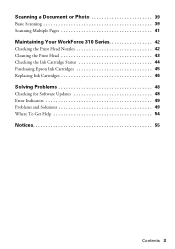
... Photo 39
Basic Scanning 39 Scanning Multiple Pages 41
Maintaining Your WorkForce 310 Series 42
Checking the Print Head Nozzles 42 Cleaning the Print Head 43 Checking the Ink Cartridge Status 44 Purchasing Epson Ink Cartridges 45 Replacing Ink Cartridges 46
Solving Problems 48
Checking for Software Updates 48 Error Indicators 49 Problems and Solutions 49 Where...
Quick Guide - Page 5
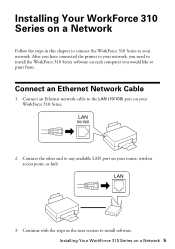
... Series to your network. After you have connected the printer to your network, you need to install the WorkForce 310 Series software on each computer you would like to print from.
Connect an Ethernet Network Cable
1. Connect an Ethernet network cable to the LAN (10/100) port on your WorkForce 310 Series.
2. Connect the other end to any available LAN port on your router, wireless access point, or...
Quick Guide - Page 6
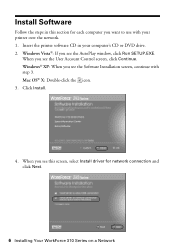
... the printer software CD in your computer's CD or DVD drive. 2. Windows Vista®: If you see the AutoPlay window, click Run SETUP.EXE.
When you see the User Account Control screen, click Continue. Windows® XP: When you see the Software Installation screen, continue with step 3. Mac OS® X: Double-click the icon. 3. Click Install.
4. When you see this screen, select Install driver for...
Quick Guide - Page 7
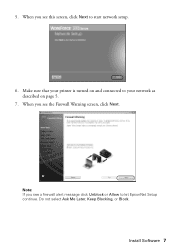
5. When you see this screen, click Next to start network setup.
6. Make sure that your printer is turned on and connected to your network as described on page 5.
7. When you see the Firewall Warning screen, click Next.
Note: If you see a firewall alert message click Unblock or Allow to let EpsonNet Setup continue. Do not select Ask Me Later, Keep Blocking, or Block.
Install Software 7
Quick Guide - Page 9
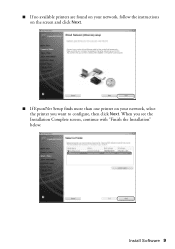
■ If no available printers are found on your network, follow the instructions on the screen and click Next.
■ If EpsonNet Setup finds more than one printer on your network, select the printer you want to configure, then click Next. When you see the Installation Complete screen, continue with "Finish the Installation" below.
Install Software 9
Quick Guide - Page 10
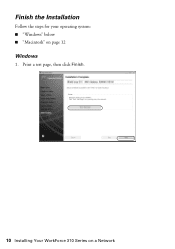
Finish the Installation
Follow the steps for your operating system: ■ "Windows" below ■ "Macintosh" on page 12
Windows
1. Print a test page, then click Finish.
10 Installing Your WorkForce 310 Series on a Network
Quick Guide - Page 11
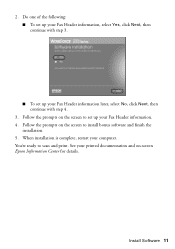
... Next, then continue with step 4.
3. Follow the prompts on the screen to set up your Fax Header information. 4. Follow the prompts on the screen to install bonus software and finish the
installation. 5. When installation is complete, restart your computer. You're ready to scan and print. See your printed documentation and on-screen Epson Information Center for details.
Install Software 11
Quick Guide - Page 13

4. Follow the prompts on the screen to print a test page, install bonus software, and finish the installation.
5. When installation is complete, restart your computer. You're ready to scan and print. See your printed documentation and on-screen Epson Information Center for details.
Install Software 13
Quick Guide - Page 32
...WorkForce 310 Series software. See "Checking for Software Updates" on page 48 for instructions.
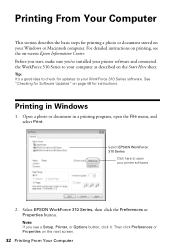
Printing in Windows
1. Open a photo or document in a printing program, open the File menu, and select Print.
Select EPSON WorkForce 310 Series
Click here to open your printer software
2. Select EPSON WorkForce 310 Series, then click the Preferences or Properties button.
Note: If you see a Setup, Printer...
Quick Guide - Page 39
... Photo
You can use your Epson WorkForce 310 Series to scan original documents and photos and save them as digital files on your computer or other device. The Epson Scan software provides three scanning modes: ■ Office Mode previews your image and scans text documents quickly. ■ Home Mode previews your image and provides preset options for scanning. ■ Professional Mode previews...
Quick Guide - Page 44
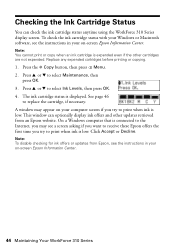
... Cartridge Status
You can check the ink cartridge status anytime using the WorkForce 310 Series display screen. To check the ink cartridge status with your Windows or Macintosh software, see the instructions in your on-screen Epson Information Center.
Note: You cannot print or copy when an ink cartridge is expended even if the other cartridges are...
Quick Guide - Page 48
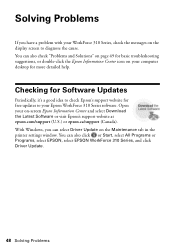
... a good idea to check Epson's support website for free updates to your Epson WorkForce 310 Series software. Open your on-screen Epson Information Center and select Download the Latest Software or visit Epson's support website at epson.com/support (U.S.) or epson.ca/support (Canada). With Windows, you can select Driver Update on the Maintenance tab in the printer settings window. You can also click...
Quick Guide - Page 52
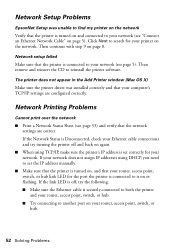
... set the IP address manually.
■ Make sure that the printer is turned on, and that your router, access point, switch, or hub link LED for the port the printer is connected to is on or flashing. If the link LED is off, try the following: ■ Make sure the Ethernet cable is securely connected to both the printer and your router...
Quick Guide - Page 54
...
Internet Support Visit Epson's support website at epson.com/support and select your product for solutions to common problems. You can download drivers and documentation, get FAQs and troubleshooting advice, or e-mail Epson with your questions. Speak to a Support Representative Before you call Epson for support, please have the following information ready: ■ Product name (Epson WorkForce...
Quick Guide - Page 58

... ribbons, ink cartridges or third party parts, components, or peripheral devices added to the Epson product after its shipment from Epson, e.g., dealer or user-added boards or components. Epson is not responsible for warranty service should the Epson label or logo or the rating label or serial number be removed or should the product fail to be properly...
Start Here - Page 5
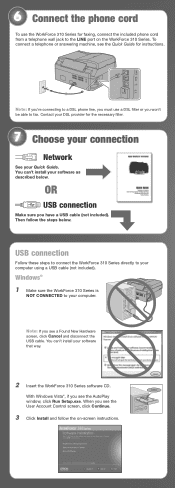
... your computer.
Note: If you see a Found New Hardware screen, click Cancel and disconnect the USB cable. You can't install your software that way.
2 Insert the WorkForce 310 Series software CD.
With Windows Vista®, if you see the AutoPlay window, click Run Setup.exe. When you see the User Account Control screen, click Continue.
3 Click Install and follow the on-screen instructions.
Start Here - Page 6
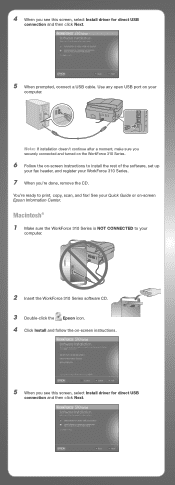
... to print, copy, scan, and fax! See your Quick Guide or on-screen Epson Information Center.
Macintosh® 1 Make sure the WorkForce 310 Series is NOT CONNECTED to your
computer.
2 Insert the WorkForce 310 Series software CD. 3 Double-click the Epson icon. 4 Click Install and follow the on-screen instructions.
5 When you see this screen, select Install driver for direct USB
connection and then...
Start Here - Page 7
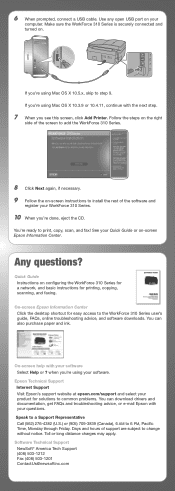
... or on-screen Epson Information Center.
Any questions?
Quick Guide Instructions on configuring the WorkForce 310 Series for
a network, and basic instructions for printing, copying, scanning, and faxing.
On-screen Epson Information Center Click the desktop shortcut for easy access to the WorkForce 310 Series user's
guide, FAQs, online troubleshooting advice, and software downloads. You can also...