
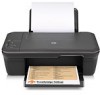
HP Deskjet 1050 - All-in-One Printer - J410 driver and firmware
Drivers and firmware downloads for this Hewlett-Packard item
Related HP Deskjet 1050 Manual Pages
Download the free PDF manual for HP Deskjet 1050 and other HP manuals at ManualOwl.com
Reference Guide - Page 1
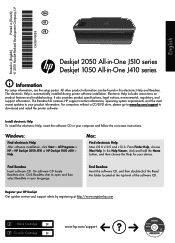
... computers without a CD/DVD drive, please go to www.hp.com/support to download and install the printer software.
Install electronic Help To install the electronic Help, insert the software CD in your computer and follow the on-screen instructions.
Windows:
Find electronic Help After software installation, click Start > All Programs > HP > HP Deskjet 2050 J510 or HP Deskjet 1050 J410 > Help.
Mac...
Reference Guide - Page 2
... in the United States and/or other countries.
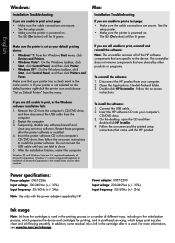
To install the software:
1. Connect the USB cable. 2. Insert the HP software CD into your computer's
CD/DVD drive. 3. On the desktop, open the CD and then
double-click HP Installer. 4. Follow the on-screen and the printed setup
instructions that came with the HP product.
Power specifications:
Power adapter: 0957-2286 Input voltage: 100-240Vac (+/- 10...
Reference Guide - Page 3
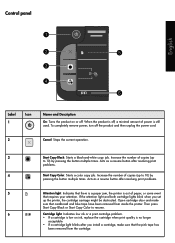
... the attention light and both cartridge lights blink when you set
up the printer, the cartridge carriage might be obstructed. Open cartridge door and make
sure that cardboard and blue tape have been removed from inside the printer. Then press
Start Copy Black or Start Copy Color to resume.
6
Cartridge light: Indicates low ink or...
Reference Guide - Page 4
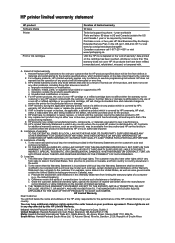
HP printer limited warranty statement
HP product Software Media Printer
Print or Ink cartridges
Duration of limited warranty
90 days
Technical support by phone: 1 year worldwide Parts and labor: 90 days in US and Canada (outside the US and Canada 1 year or as required by local law) Purchase a one- or two-year HP Next Business Day Exchange Extended Service Plan. In...
User Guide - Page 9
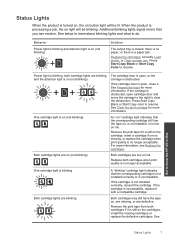
...errors that you can resolve. See below to learn about blinking lights and what to do.
Behavior
Power...Load media, or Clear a paper jam. Press Start Copy Black or Start Copy Color to resume.
Power...Copy Black or Start Copy color to resume. See Clear the print carriage for more information.
One...installed, or is low on ink.
Remove the pink tape if it is still on the cartridge, insert a cartridge if one...
User Guide - Page 11

... open. 2. Make sure you have paper loaded in the input tray.
3. From your software application, click the Print button. 4. Make sure the product is the selected printer. 5. Click the button that opens the Properties dialog box.
Depending on your software application, this button might be called Properties, Options, Printer Setup, Printer, or Preferences. 6. Select the appropriate options...
User Guide - Page 12
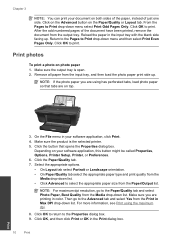
...just one ...load photo paper so that tabs are on top.
3. On the File menu in your software application, click Print. 4. Make sure the product is the selected printer. 5. Click the button that opens the Properties dialog box.
Depending on your software application, this button might be called Properties, Options, Printer Setup, Printer...list.
NOTE: For maximum dpi resolution, go to the Paper/Quality ...
User Guide - Page 13
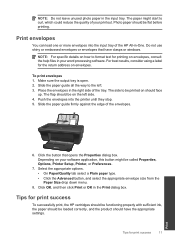
... tray of the HP All-in-One. Do not use shiny or embossed envelopes or envelopes that have clasps or windows.
NOTE: For specific details on how to format text for printing on envelopes, consult the help files in your word processing software. For best results, consider using a label for the return address on envelopes...
User Guide - Page 14
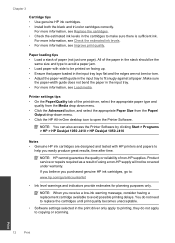
... driver, select the appropriate paper type and
quality from the Media drop down menu. • Click the Advanced button, and select the appropriate Paper Size from the Paper/
Output drop-down menu. • Click the HP All-in-One desktop icon to open the Printer Software.
NOTE: You can also access the Printer Software by clicking Start > Programs > HP > HP Deskjet 1050 J410 > HP Deskjet 1050 J410...
User Guide - Page 15
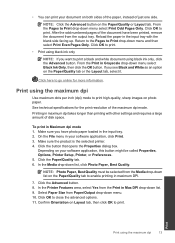
... takes longer than printing with other settings and requires a large amount of disk space.
To print in Maximum dpi mode 1. Make sure you have photo paper loaded in the input tray. 2. On the File menu in your software application, click Print. 3. Make sure the product is the selected printer. 4. Click the button that opens the...
User Guide - Page 28
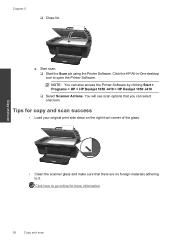
... Start scan. ❑ Start the Scan job using the Printer Software. Click the HP All-in-One desktop icon to open the Printer Software.
NOTE: You can also access the Printer Software by clicking Start > Programs > HP > HP Deskjet 1050 J410 > HP Deskjet 1050 J410
❑ Select Scanner Actions. You will see scan options that you can select onscreen.
Tips for copy and scan success
• Load your...
User Guide - Page 29
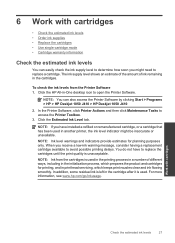
... the Printer Software 1. Click the HP All-in-One desktop icon to open the Printer Software.
NOTE: You can also access the Printer Software by clicking Start > Programs > HP > HP Deskjet 1050 J410 > HP Deskjet 1050 J410
2. In the Printer Software, click Printer Actions and then click Maintenance Tasks to access the Printer Toolbox.
3. Click the Estimated Ink Level tab.
NOTE: If you have installed...
User Guide - Page 30
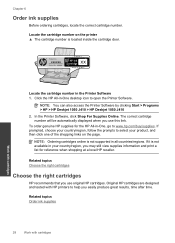
...
Locate the cartridge number in the Printer Software 1. Click the HP All-in-One desktop icon to open the Printer Software.
NOTE: You can also access the Printer Software by clicking Start > Programs > HP > HP Deskjet 1050 J410 > HP Deskjet 1050 J410
2. In the Printer Software, click Shop For Supplies Online. The correct cartridge number will be automatically displayed when you use this link.
To...
User Guide - Page 33
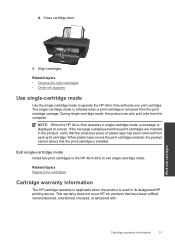
... carriage. During single-cartridge mode, the product can only print jobs from the computer.
NOTE: When the HP All-in-One operates in single-cartridge mode, a message is displayed on screen. If the message is displayed and two print cartridges are installed in the product, verify that the protective piece of plastic tape has been removed...
User Guide - Page 35
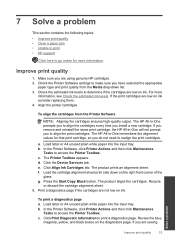
... HP All-in-One remembers the alignment values for that print cartridge, so you do not need to realign the print cartridges.
a. Load letter or A4 unused plain white paper into the input tray. b. In the Printer Software, click Printer Actions and then click Maintenence
Tasks to access the Printer Toolbox. c. The Printer Toolbox appears. d. Click the Device Services tab...
User Guide - Page 36
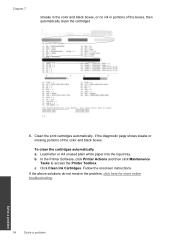
... color and black boxes.
To clean the cartridges automatically a. Load letter or A4 unused plain white paper into the input tray. b. In the Printer Software, click Printer Actions and then click Maintenence
Tasks to access the Printer Toolbox. c. Click Clean Ink Cartridges. Follow the onscreen instructions. If the above solutions do not resolve the problem, click...
User Guide - Page 39
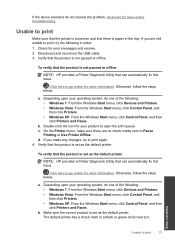
... system, do one of the following: • Windows 7: From the Windows Start menu, click Devices and Printers. • Windows Vista: From the Windows Start menu, click Control Panel, and then click Printers. • Windows XP: From the Windows Start menu, click Control Panel, and then click Printers and Faxes.
b. Make sure the correct product is set as the default printer. The default printer has...
User Guide - Page 40
...
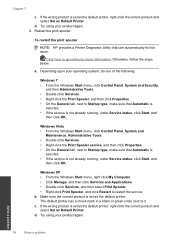
NOTE: HP provides a Printer Diagnostic Utility that can automatically fix this issue.
Click here to go online for more information. Otherwise, follow the steps below.
a. Depending upon your operating system, do one of the following:
Windows 7 • From the Windows Start menu, click Control Panel, System and Security,
and then Administrative Tools. • Double-click Services. •...
User Guide - Page 41
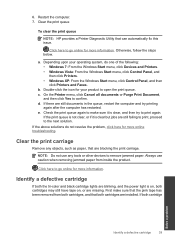
... below.
a. Depending upon your operating system, do one of the following: • Windows 7: From the Windows Start menu, click Devices and Printers. • Windows Vista: From the Windows Start menu, click Control Panel, and then click Printers. • Windows XP: From the Windows Start menu, click Control Panel, and then click Printers and Faxes.
b. Double-click the icon for your product to...
User Guide - Page 43
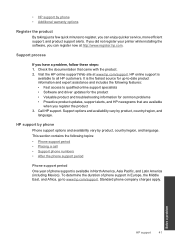
• HP support by phone • Additional warranty options
Register the product
By taking just a few quick minutes to register, you can enjoy quicker service, more efficient support, and product support alerts. If you did not register your printer while installing the software, you can register now at http://www.register.hp.com.
Support process
If you have a problem, follow these steps...