
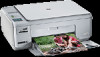
HP Photosmart C4380 - All-in-One Printer driver and firmware
Drivers and firmware downloads for this Hewlett-Packard item
Related HP Photosmart C4380 Manual Pages
Download the free PDF manual for HP Photosmart C4380 and other HP manuals at ManualOwl.com
Basics Guide - Page 6
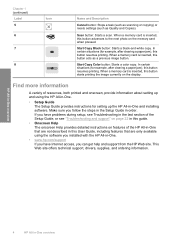
... onscreen, provide information about setting up and using the HP All-in-One.
• Setup Guide The Setup Guide provides instructions for setting up the HP All-in-One and installing software. Make sure you follow the steps in the Setup Guide in order. If you have problems during setup, see Troubleshooting in the last section of the Setup Guide, or see "Troubleshooting and support" on page 22 in...
Basics Guide - Page 10
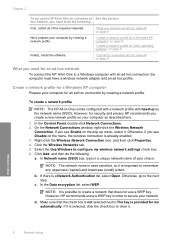
... operating systems" on page 9
Finally, install the software.
"Connect to a wireless ad hoc network" on page 9
What you need for an ad hoc network
To connect the HP All-in-One to a Windows computer with an ad hoc connection, the computer must have a wireless network adapter and an ad hoc profile.
Create a network profile for a Windows XP computer
Prepare your computer for an ad hoc connection by...
Basics Guide - Page 12
Chapter 2
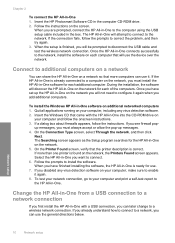
To connect the HP All-in-One 1. Insert the HP Photosmart Software CD in the computer CD-ROM drive. 2. Follow the instructions on the screen.
When you are prompted, connect the HP All-in-One to the computer using the USB setup cable included in the box. The HP All-in-One will attempt to connect to the network. If the connection fails, follow the prompts to correct...
Basics Guide - Page 19
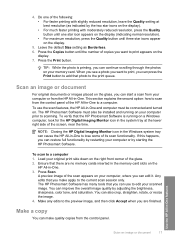
... second option: how to scan from the control panel of the HP All-in-One to a computer. To use the scan features, the HP All-in-One and computer must be connected and turned on. The HP Photosmart Software must also be installed and running on your computer prior to scanning. To verify that the HP Photosmart Software is running on a Windows computer, look for the HP Digital Imaging Monitor icon in...
Basics Guide - Page 24
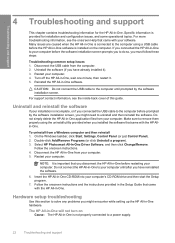
... when you installed the software that came with the HP Allin-One.
To uninstall from a Windows computer and then reinstall 1. On the Windows taskbar, click Start, Settings, Control Panel (or just Control Panel). 2. Double-click Add/Remove Programs (or click Uninstall a program). 3. Select HP Photosmart All-In-One Driver Software, and then click Change/Remove.
Follow the onscreen instructions...
Basics Guide - Page 26
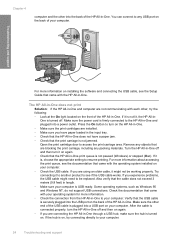
... the back of the HP All-in-One. You can connect to any USB port on the back of your computer.
Troubleshooting and support
For more information on installing the software and connecting the USB cable, see the Setup Guide that came with the HP All-in-One.
The HP All-in-One does not print Solution: If the HP All-in-One and computer are not communicating with...
Basics Guide - Page 31
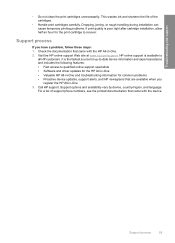
... • Software and driver updates for the HP All-in-One • Valuable HP All-in-One and troubleshooting information for common problems • Proactive device updates, support alerts, and HP newsgrams that are available when you
register the HP All-in-One 3. Call HP support. Support options and availability vary by device, country/region, and language.
For a list of support phone numbers...
User Guide - Page 12
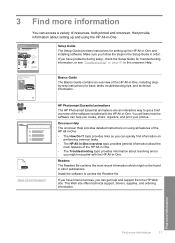
... resources, both printed and onscreen, that provide information about setting up and using the HP All-in-One.
Setup Guide The Setup Guide provides instructions for setting up the HP All-in-One and installing software. Make sure you follow the steps in the Setup Guide in order. If you have problems during setup, check the Setup Guide for troubleshooting information, or see "Troubleshooting" on page...
User Guide - Page 17
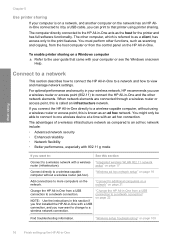
... as scanning and copying, from the host computer or from the control panel on the HP All-in-One.
To enable printer sharing on a Windows computer
▲ Refer to the user guide that came with your computer or see the Windows onscreen Help.
Connect to a network
This section describes how to connect the HP All-in-One to a network and how to view and manage network settings.
For...
User Guide - Page 20
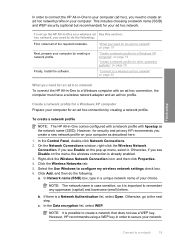
... systems" on page 20
Finally, install the software.
"Connect to a wireless ad hoc network" on page 20
What you need for an ad hoc network To connect the HP All-in-One to a Windows computer with an ad hoc connection, the computer must have a wireless network adapter and an ad hoc profile.
Create a network profile for a Windows XP computer Prepare your computer for an ad hoc connection...
User Guide - Page 22
Finish setup
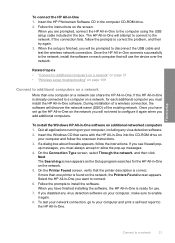
To connect the HP All-in-One 1. Insert the HP Photosmart Software CD in the computer CD-ROM drive. 2. Follow the instructions on the screen.
When you are prompted, connect the HP All-in-One to the computer using the USB setup cable included in the box. The HP All-in-One will attempt to connect to the network. If the connection fails, follow the prompts to correct...
User Guide - Page 25
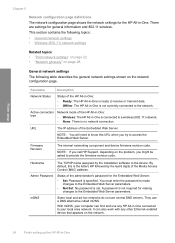
... call HP Support, depending on the problem, you might be asked to provide the firmware revision code.
Hostname
The TCP/IP name assigned by the installation software to the device. By default, this is the letters HP followed by the last 6 digits of the Media Access Control (MAC) address.
Admin Password
Status of the administrator's password for the Embedded Web Server:
• Set: Password is...
User Guide - Page 68
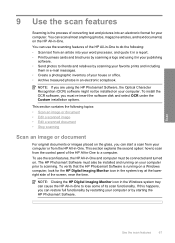
... second option: how to scan from the control panel of the HP All-in-One to a computer.
To use the scan features, the HP All-in-One and computer must be connected and turned on. The HP Photosmart Software must also be installed and running on your computer prior to scanning. To verify that the HP Photosmart Software is running on a Windows computer, look for the HP Digital Imaging Monitor icon in...
User Guide - Page 102
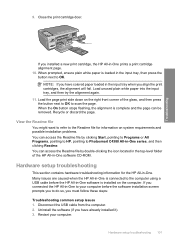
... of the HP All-in-One software CD-ROM.
Hardware setup troubleshooting
This section contains hardware troubleshooting information for the HP All-in-One. Many issues are caused when the HP All-in-One is connected to the computer using a USB cable before the HP All-in-One software is installed on the computer. If you connected the HP All-in-One to your computer before the software installation screen...
User Guide - Page 105
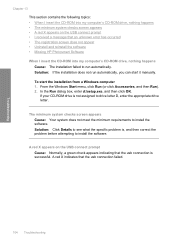
... appear • Uninstall and reinstall the software • Missing HP Photosmart Software When I insert the CD-ROM into my computer's CD-ROM drive, nothing happens Cause: The installation failed to run automatically. Solution: If the installation does not run automatically, you can start it manually. To start the installation from a Windows computer 1. From the Windows Start menu, click Run (or...
User Guide - Page 107
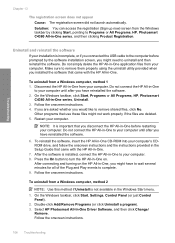
... (Sign up now) screen from the Windows taskbar by clicking Start, pointing to Programs or All Programs, HP, Photosmart C4380 All-in-One series, and then clicking Product Registration.
Uninstall and reinstall the software
If your installation is incomplete, or if you connected the USB cable to the computer before prompted by the software installation screen, you might need to uninstall and...
User Guide - Page 108
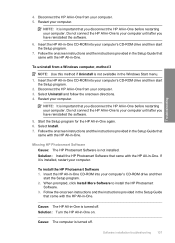
... and the instructions provided in the Setup Guide that
came with the HP All-in-One.
Missing HP Photosmart Software Cause: The HP Photosmart Software is not installed. Solution: Install the HP Photosmart Software that came with the HP All-in-One. If it is installed, restart your computer.
To install the HP Photosmart Software 1. Insert the HP All-in-One CD-ROM into your computer's CD-ROM drive and...
User Guide - Page 132
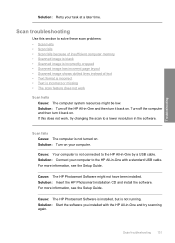
... resolution in the software.
Scan fails Cause: The computer is not turned on. Solution: Turn on your computer.
Cause: Your computer is not connected to the HP All-in-One by a USB cable. Solution: Connect your computer to the HP All-in-One with a standard USB cable. For more information, see the Setup Guide.
Cause: The HP Photosmart Software might not have been installed. Solution: Insert the HP...
User Guide - Page 160
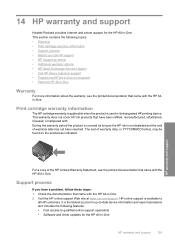
... HP All-in-One. 2. Visit the HP online support Web site at www.hp.com/support. HP online support is available to
all HP customers. It is the fastest source for up-to-date device information and expert assistance and includes the following features: • Fast access to qualified online support specialists • Software and driver updates for the HP All-in-One
HP warranty and support 159
HP...
User Guide - Page 161
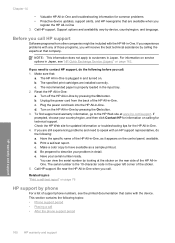
... information for common problems • Proactive device updates, support alerts, and HP newsgrams that are available when you
register the HP All-in-One 3. Call HP support. Support options and availability vary by device, country/region, and language.
Before you call HP support
Software programs from other companies might be included with the HP All-in-One. If you experience problems with any of...