
Lenovo ThinkPad i Series 1124 driver and firmware
Drivers and firmware downloads for this Lenovo item

Related Lenovo ThinkPad i Series 1124 Manual Pages
Download the free PDF manual for Lenovo ThinkPad i Series 1124 and other Lenovo manuals at ManualOwl.com
ThinkPad 240 Setup Guide that shipped with the system. Provides front and rear views of features on the system as well as other - Page 4
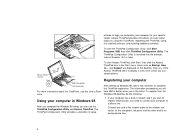
... your computer in Windows 98
After you complete the Windows 98 setup, you can use the ThinkPad Configuration Utility and Access ThinkPad. The ThinkPad Configuration Utility provides a collection of setup
1. If your computer has a built-in modem and if you wish to register electronically, you need to connect your computer to a phone line.
Connect one end of the modem cable to the modem connector...
ThinkPad 240 Setup Guide that shipped with the system. Provides front and rear views of features on the system as well as other - Page 5
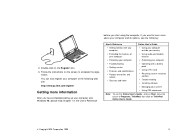
...have completed setting up your computer and Windows 98, please read Chapter 1 in the User's Reference
ThinkPad
User's Reference
Online User's Guide
Getting familiar with your computer
Using your computer outside your country
Extending the features of your computer
Using audio and modem features
Protecting your computer
Protecting your computer
Troubleshooting Getting service Features and...
ThinkPad 240 User's Reference that shipped with the system. - Page 10
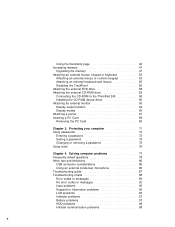
... FDD drive 58 Attaching the external CD-ROM drive 59 Connecting the CD-ROM to the ThinkPad 240 59 Installing the CD-ROM device driver 60 Attaching an external monitor 63 Display output location 64 Display modes 65 Attaching a printer 67 Inserting a PC Card 68 Removing the PC Card 69
Chapter 3. Protecting your computer 71 Using passwords 72
Entering a password 73 Setting a password 74...
ThinkPad 240 User's Reference that shipped with the system. - Page 44
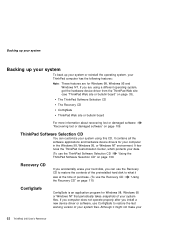
...ThinkPad Software Selection CD
The Recovery CD
ConfigSafe
ThinkPad Web site or bulletin board
For more information about recovering lost or damaged software "Recovering lost or damaged software" on page 109.
ThinkPad Software Selection CD
You can customize your system using this CD. It contains all the software applications and hardware device drivers for your computer in the Windows 98, Windows...
ThinkPad 240 User's Reference that shipped with the system. - Page 55
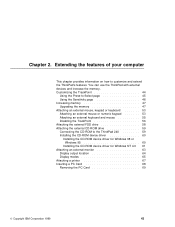
...58 Attaching the external CD-ROM drive 59 Connecting the CD-ROM to the ThinkPad 240 59 Installing the CD-ROM device driver 60
Installing the CD-ROM device driver for Windows 98 or Windows 95 60
Installing the CD-ROM device driver for Windows NT 4.0 61 Attaching an external monitor 63
Display output location 64 Display modes 65 Attaching a printer 67 Inserting a PC Card 68 Removing the PC...
ThinkPad 240 User's Reference that shipped with the system. - Page 72
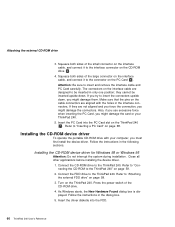
... damage the card or your ThinkPad 240.
5. Insert the PC Card into the PC Card slot on the ThinkPad 240 7 . Refer to "Inserting a PC Card" on page 68.
Installing the CD-ROM device driver
To operate the portable CD-ROM drive with your computer, you must first install the device driver. Follow the instructions in the following sections.
Installing the CD-ROM device driver for Windows 98 or Windows 95...
ThinkPad 240 User's Reference that shipped with the system. - Page 73
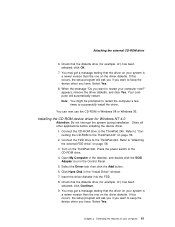
... FDD drive to the ThinkPad 240. Refer to "Attaching the external FDD drive" on page 58.
3. Turn on the ThinkPad 240. Press the power switch of the CD-ROM drive.
4. Open My Computer in the desktop, and double-click the SCSI Adapter icon in the Control Panel.
5. Select the Driver tab; then click the Add button. 6. Click Have Disk in the "Install Driver" window. 7. Insert the driver diskette...
ThinkPad 240 User's Reference that shipped with the system. - Page 74
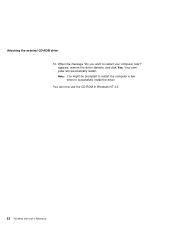
Attaching the external CD-ROM drive 10. When the message "Do you want to restart your computer now?" appears, remove the driver diskette, and click Yes. Your computer will automatically restart. Note: You might be prompted to restart the computer a few times to successfully install the driver. You can now use the CD-ROM in Windows NT 4.0.
62 ThinkPad 240 User's Reference
ThinkPad 240 User's Reference that shipped with the system. - Page 81
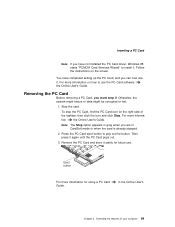
...: If you have not installed the PC Card driver, Windows 98 starts "PCMCIA Card Services Wizard" to install it. Follow the instructions on the screen.
You have completed setting up the PC Card, and you can now use it. For more information on how to use the PC Card software the Online User's Guide.
Removing the PC Card
Before removing a PC Card, you must stop...
ThinkPad 240 User's Reference that shipped with the system. - Page 97
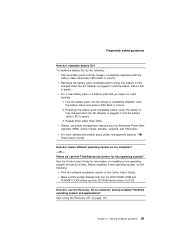
... and hibernation. For more detailed information about power management features Online User's Guide
How do I load a different operating system on my computer? -Or- Where do I get the ThinkPad device drivers for this operating system? See the Online User's Guide for information on installing a new operating system and device drivers. Before installing a new operating system, do the following:
Print...
ThinkPad 240 User's Reference that shipped with the system. - Page 108
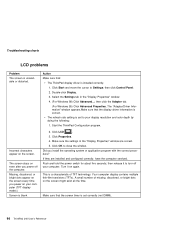
... time you power on your computer (TFT display model.) Screen is blank
Action Make sure that:
The ThinkPad display driver is installed correctly. 1. Click Start and move the cursor to Settings; then click Control Panel. 2. Double-click Display. 3. Select the Settings tab in the "Display Properties" window. 4. (For Windows 98) Click Advanced...; then click the Adapter tab. (For Windows 95) Click...
ThinkPad 240 User's Reference that shipped with the system. - Page 111
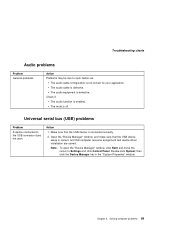
... Check if: The audio function is enabled. The mute is off.
Universal serial bus (USB) problems
Problem
A device connected to the USB connector does not work.
Action
1. Make sure that the USB device is connected correctly.
2. Open the "Device Manager" window, and make sure that the USB device setup is correct, and that computer resource assignment and device driver installation are correct.
Note...
ThinkPad 240 User's Reference that shipped with the system. - Page 116
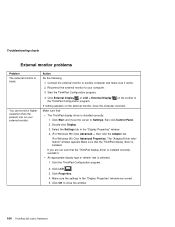
... external monitor, have the computer serviced.
Make sure that:
The ThinkPad display driver is installed correctly.
1. Click Start and move the cursor to Settings; then click Control Panel.
2. Double-click Display.
3. Select the Settings tab in the "Display Properties" window.
4. (For Windows 98) Click Advanced...; then click the Adapter tab.
(For Windows 95) Click Advanced Properties. The...
ThinkPad 240 User's Reference that shipped with the system. - Page 117
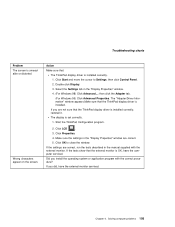
...click Control Panel. 2. Double-click Display. 3. Select the Settings tab in the "Display Properties" window. 4. (For Windows 98) Click Advanced...; then click the Adapter tab. (For Windows 95) Click Advanced Properties. The "Adapter/Driver Information" window appears.Make sure that the ThinkPad display driver is installed.
If you are not sure that the ThinkPad display driver is installed correctly...
ThinkPad 240 User's Reference that shipped with the system. - Page 119
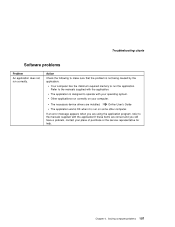
... the minimum required memory to run the application. Refer to the manuals supplied with the application.
The application is designed to operate with your operating system.
Other applications run correctly on your computer.
The necessary device drivers are installed.
Online User's Guide
The application works OK when it is run on some other computer.
If an error message appears...
ThinkPad 240 User's Reference that shipped with the system. - Page 121
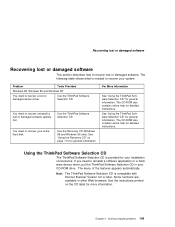
... your installation convenience. If you need to reinstall a software application or a hardware device driver, put the ThinkPad Software Selection CD in your CD-ROM drive. The menu of the features appears automatically.
Note: The ThinkPad Software Selection CD is compatible with Internet Explorer Version 4.0 or later. Some functions are available in other Web browsers. See the instructions printed...
ThinkPad 240 User's Reference that shipped with the system. - Page 122
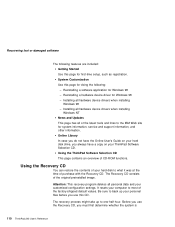
... when installing Windows 98 - Installing all hardware device drivers when installing Windows NT News and Updates This page has all of the latest tools and links to the IBM Web site for system information, service and support information, and other information. Online Library In case you do not have the Online User's Guide on your hard disk drive, you always have a copy on your ThinkPad Software...
ThinkPad 240 User's Reference that shipped with the system. - Page 123
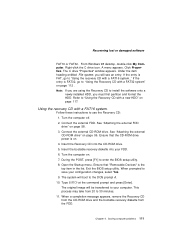
... external CD-ROM drive. See "Attaching the external CD-ROM drive" on page 59. Ensure that the CD-ROM drive power is on. 4. Insert the Recovery CD into the CD-ROM drive. 5. Insert the bootable recovery diskette into your FDD. 6. Turn the computer on. 7. During the POST, press [F1] to enter the BIOS setup utility. 8. Open the Startup menu. Ensure that "Removable Devices" is the...
ThinkPad 240 User's Reference that shipped with the system. - Page 139
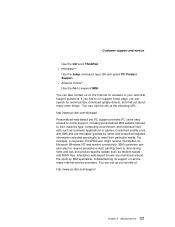
... Microsoft Windows NT and remote connectivity. IBM customers can also elect to receive proactive e-mail, alerting them to time-saving hints and tips and product-specific update such as modem speed and BIOS files. Interactive web-based forums are monitored around the clock by IBM specialists, complementing its support on all the major Internet service providers. You can set...
ThinkPad 240 User's Reference that shipped with the system. - Page 140
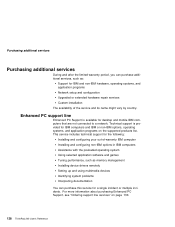
... games Tuning performance, such as memory management Installing device drivers remotely Setting up and using multimedia devices Identifying system problems Interpreting documentation
You can purchase this service for a single incident or multiple incidents. For more information about purchasing Enhanced PC Support, see "Ordering support line services" on page 130.
128 ThinkPad 240 User's Reference