
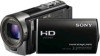
Sony HDR-CX160 driver and firmware
Drivers and firmware downloads for this Sony item
Related Sony HDR-CX160 Manual Pages
Download the free PDF manual for Sony HDR-CX160 and other Sony manuals at ManualOwl.com
Handycam® Handbook - Page 2
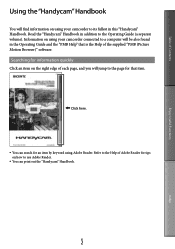
.... Read the "Handycam" Handbook in addition to the Operating Guide (a separate volume). Information on using your camcorder connected to a computer will be also found in the Operating Guide and the "PMB Help" that is the Help of the supplied "PMB (Picture Motion Browser)" software.
Searching for information quickly
Click an item on the right...
Handycam® Handbook - Page 3
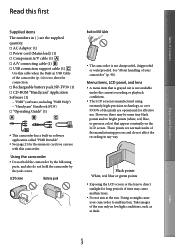
...; AC Adaptor (1) Power cord (Mains lead) (1) Component A/V cable (1) A/V connecting cable (1) USB connection support cable (1)
Use this cable when the Built-in USB Cable of the camcorder (p. 14) is too short for connection. Rechargeable battery pack NP-FV50 (1) CD-ROM "Handycam" Application Software (1) "PMB...
Handycam® Handbook - Page 40
...) [Setup]
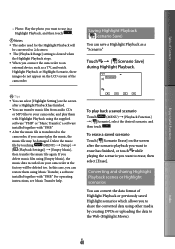
[ (Playback Settings)] [Empty Music],
then transfer the music file again. If you
delete music files using [Empty Music], the
music data recorded on your camcorder at the
factory will be deleted too. In this case, you can
restore them using Music Transfer, a software
installed together with "PMB." For operating
instructions, see Music...
Handycam® Handbook - Page 45
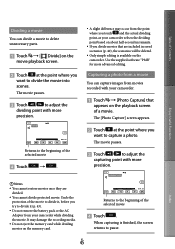
...is available on the camcorder. Use the supplied software "PMB" for more advanced editing.
Capturing a photo from a movie
You can capture images from movies recorded with your camcorder.
Touch ... dividing the movie. It may damage the recording media.
Do not eject the memory card while dividing movies on the memory card.
Returns to the beginning of the selected movie...
Handycam® Handbook - Page 47
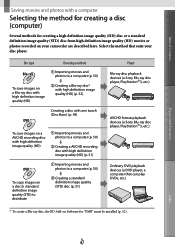
... image quality (STD) disc (p. 51)
Player Blu-ray disc playback devices (a Sony Blu-ray disc player, PlayStation3, etc.)
AVCHD format playback devices (a Sony Blu-ray disc player, PlayStation3, etc.)
Ordinary DVD playback devices (a DVD player, a computer that can play DVDs, etc.)
* To create a Blu-ray disc, the BD Add-on Software for "PMB" must be installed (p. 52).
Index
US
47
Handycam® Handbook - Page 49
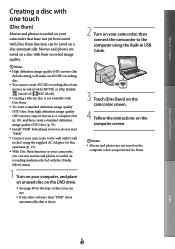
... DVD drive.
See page 48 for the type of discs you can use.
If any other software than "PMB" starts automatically, shut it down.
2 Turn on your camcorder, then connect the camcorder to the computer using the Built-in USB Cable.
3 Touch [Disc Burn] on the camcorder screen.
4 Follow the instructions on the computer screen...
Handycam® Handbook - Page 51
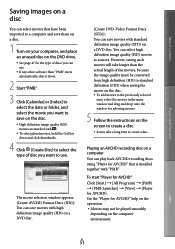
... drag and drop onto the window for selecting movies.
5 Follow the instructions on the screen to create a disc.
It may take a long time to create a disc.
Playing an AVCHD recording disc on a computer
You can play back AVCHD recording discs using "Player for AVCHD" that is installed together with "PMB."
To start "Player for AVCHD" Click [Start...
Handycam® Handbook - Page 52
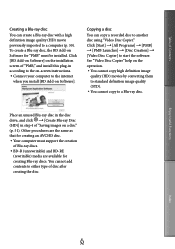
... a Blu-ray disc, the BD Add-on Software for "PMB" must be installed. Click [BD Add-on Software] on the installation screen of "PMB," and install this plug-in according to the on-screen instructions. Connect your computer to the internet
when you install [BD Add-on Software].
Copying a disc
You can copy a recorded disc to another disc using "Video Disc Copier...
Handycam® Handbook - Page 81
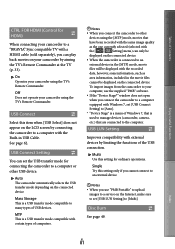
...files cannot be displayed on the connected device. To import images from the camcorder to your computer, use the supplied "PMB" software. If the "Device Stage*" window does not open when you connect the camcorder to a computer equipped with Windows 7, set [USB Connect Setting] to [Auto]. * "Device Stage" is a menu of Windows 7, that is used to manage devices (camcorder, camera, etc.) that...
Handycam® Handbook - Page 101
... somebody, it is recommended that you delete data completely using data deletion software on a computer. Also, when you dispose of the memory card, it is recommended that you destroy the actual body of the memory card.
On trademarks
"Handycam" and
are
registered trademarks of Sony Corporation.
"AVCHD" and "AVCHD" logotype are
trademarks of Panasonic Corporation...
Handycam® Handbook - Page 102
... source code. Read "license2.pdf " in the "License" folder on the CD-ROM. You will find licenses (in English) of "GPL," and "LGPL" software.
To view the PDF, Adobe Reader is needed. If it is not installed on your computer, you can download it from the Adobe Systems web page: http://www.adobe.com/
Index
US...
Operating Guide (Large File - 10.33 MB) - Page 36
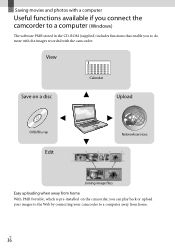
... camcorder to a computer (Windows)
The software PMB stored in the CD-ROM (supplied) includes functions that enable you to do more with the images recorded with the camcorder.
View
Save on a disc
Calendar
Upload
DVD/Blu-ray
Edit
Network services
Joining image files
Easy uploading when away from home With PMB Portable, which is pre-installed on the...
Operating Guide (Large File - 10.33 MB) - Page 37
...
Hard disk
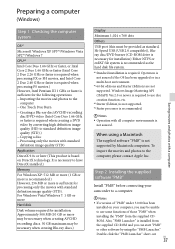
Disk volume required for installation: Approximately 500 MB (10 GB or more may be necessary when creating AVCHD recording discs. 50 GB maximum may be necessary when creating Blu-ray discs.)
Display Minimum 1,024 × 768 dots Others USB port (this must be provided as standard, Hi-Speed USB (USB 2.0 compatible)), Bluray disc/DVD burner (CD-ROM drive is...
Operating Guide (Large File - 10.33 MB) - Page 38
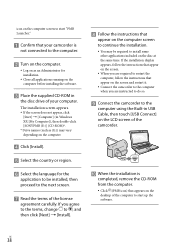
... computer when you are instructed to do so.
Connect the camcorder to the
computer using the Built-in USB Cable, then touch [USB Connect] on the LCD screen of the camcorder.
When the installation is
completed, remove the CD-ROM from the computer.
Click (PMB icon) that appears on the desktop of the computer to start up the software...
Operating Guide (Large File - 10.33 MB) - Page 39
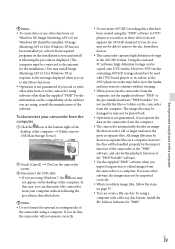
... using, consult the manufacturer of the software.
To disconnect your camcorder from the computer
Click the icon at the bottom right of the desktop of the computer [Safely remove USB Mass Storage Device].
Touch [Cancel] [Yes] on the camcorder screen.
Disconnect the USB cable. If you are using Windows 7, the icon may not appear...
Operating Guide (Large File - 10.33 MB) - Page 40
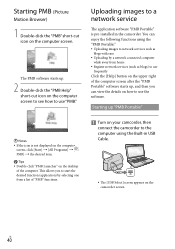
... desired item. Tips Double-click "PMB Launcher" on the desktop of the computer. This allows you to start the desired function (application) by selecting one from a list of "PMB" functions.
Uploading images to a network service
The application software "PMB Portable" is pre-installed in the camcorder. You can enjoy the following functions using the...
Operating Guide (Large File - 10.33 MB) - Page 41
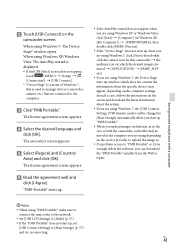
... appear, depending on the computer settings. In such a case, follow the instructions on the screen and download the latest information about the system.
If you are using Windows 7, the [USB Connect Setting] (USB transfer mode) will be changed to [Mass Storage] automatically when you start up "PMB Portable."
When you upload images via Internet, as in the case...
Operating Guide (Large File - 10.33 MB) - Page 58
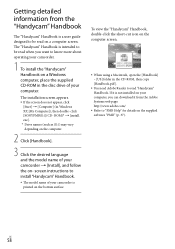
....
When using a Macintosh, open the [Handbook] - [US] folder in the CD-ROM, then copy [Handbook.pdf ].
You need Adobe Reader to read "Handycam" Handbook. If it is not installed on your computer, you can download it from the Adobe Systems web page: http://www.adobe.com/
Refer to "PMB Help" for details on...
Operating Guide (Large File - 10.33 MB) - Page 65
.../transfer of memory card
Even if you delete data in the memory card or format the memory card on your camcorder or a computer, you may not delete data from the memory card completely. When you give the memory card to somebody, it is recommended that you delete data completely using data deletion software on a computer. Also, when you dispose of the memory card, it is...
Operating Guide (Large File - 10.33 MB) - Page 72
... time....61 Recording media 20 Recording time of movies/ number of recordable photos....61 Repair 59 RESET 70
S
Saving images in external media 45 Screen indicators 69 Self-diagnosis display 60 Setting the date and time...........17 Software 37 Specifications 66 Supplied items 8
T
Thumbnail 35 Tripod 71 Troubleshooting 59 Turning the power on 17 TV 32
U USB cable 48, 51...