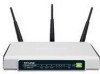
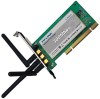
We have a direct link to download TP-Link TL-WN422G drivers, firmware and other resources directly from the
TP-Link site. To protect our site from spammers you will need to enter the verification characters below in order to
access the download link.
User Guide - Page 6
... ...2 LED Status ...2 System Requirements ...3 Network Configuration ...3
Chapter 2.
2.1 2.2 2.3
Installation Guide ...5
Before You Begin ...5 Hardware Installation...5 SoftwareInstallation ...5 For windows XP ...5 For Windows Vista ...10 For Windows 7 ...13
2.3.1 2.3.2 2.3.3
Chapter 3.
3.1
Configuration...17
For Windows XP...17 Current Status ...
User Guide - Page 9 TL-WN422GHigh-GainWirelessUSBAdapter User Guide
Chapter 1. Introduction
... you for choosing TL-WN422GHigh-GainWirelessUSBAdapter.
1.1
Overview of the product... as strong security, the TL-WN422GHigh-GainWirelessUSBAdapter is the perfect solution ...
1.3
LED Status
The TL-WN422GHigh-GainWirelessUSBAdapter has a LED... has not been installed. The driver has been installed but there is no...
User Guide - Page 12
...and insert the Resource CD into your CD-ROM drive. The autorun.exe will automatically run. Follow the steps below to install the TL-WN422GHigh-GainWirelessUSBAdapterdrivers:
2.3.1 For windows XP
1. Insert the Resource CD into your CD-ROM drive, and the screen as shown below will display. To continue,...
User Guide - Page 14 TL-WN422GHigh-GainWirelessUSBAdapter User Guide
Figure 2-3 4. After that, you should choose a Setup type. It is recommended that you select Install Client Utilities and Driver. Select InstallDriver Only to installdriver only. Click Next to continue.
Figure 2-4 5. Click Browse to change the destination location for the software, then click Next in the screen below (shown in Figure 2-5)....
User Guide - Page 17 TL-WN422GHigh-GainWirelessUSBAdapter User Guide
Figure 2-9
2.3.2 For Windows Vista
1. Insert the Resource CD into your CD-ROM drive, and the screen as shown below will display. To continue, select TL-WN422G. There will be a menu including InstallDriver & Utility and User Guide.
Figure 2-10 2. Click InstallDriver & Utility in the Figure 2-1 to load the following screen.
10
User Guide - Page 20 TL-WN422GHigh-GainWirelessUSBAdapter User Guide
Figure 2-15
2.3.3 For Windows 7
1. Insert the Resource CD into your CD-ROM drive, and the screen as shown below will display. To continue, select TL-WN422G. There will be a menu including InstallDriver & Utility and User Guide.
Figure 2-16 2. Click InstallDriver & Utility to load the following screen.
13
User Guide - Page 35 TL-WN422GHigh-GainWirelessUSBAdapter User Guide
3.1.5 Check Receive and Transmit Statistical Information
The Advanced Statistics show receiving and transmitting statistical information about the following receiving and transmitting diagnostics for frames received by or transmitted to the wireless network adapter.
Figure 3-13
3.2
For Windows Vista
After the Adapter's driver has been ...
User Guide - Page 38 TL-WN422GHigh-GainWirelessUSBAdapter User Guide
3.3
For Windows 7
TP-LINKWireless Client Utility (TWCU) is not available for Windows 7. So after the Adapter's driver has been installed, we have to use Windows WLAN Autoconfig to establish a connection. Please follow the steps below. 1. Click the icon at the bottom of your screen in your system tray and then you will see
the available ...
User Guide - Page 40 TL-WN422GHigh-GainWirelessUSBAdapter User Guide
Chapter 4. Example for Application
4.1 Configuration of PSP XLink Online game
Please ... and hardware environments are well established before configuring. For hardware, at least a PC, a TL-WN422GHigh-GainWirelessUSBAdapter and a PSP device are needed. For software, the TL-WN422GAdapterdriver should be properly installed. Please operate as ...
User Guide - Page 5
... Guide...5 Before You Begin ...5 Installation for Windows XP ...5 Installation for Windows Vista...7 Uninstall Guide...13 Uninstall the utility software through Control Panel ...13 Uninstall the utility software through Programs...14 Uninstall the driversoftware from your PC ...16 Software Configuration ...17 Station Mode Configuration ...
User Guide - Page 10 TL-WN422GHigh-Power WirelessUSBAdapter User Guide
Chapter 2
Installation Guide
2.1 Before You Begin
During the installation, Windows 98/ME... before installing the drivers.
2.2 Installation for Windows XP
Follow the steps below in order to install the TL-WN422GHigh-Power WirelessUSBAdapterdrivers: 1. Insert the Resource CD into your CD-ROM drive, and open the folder named TL-WN422G. Then ...
User Guide - Page 12
...in the taskbar.
2.3
Installation for Windows Vista
After you complete the hardware installation, follow the steps below in order to install the TL-WN422GWirelessUSBAdapterdrivers for Windows Vista: 1. Insert the Resource CD into your CD-ROM drive, right-click the Computer icon as shown in the ...
User Guide - Page 13 TL-WN422G 2.
High-Power WirelessUSBAdapter User Guide
Select Device Manager as shown in Figure 2-6, then select Continue in the next screen.
Figure 2-6 Select Device management 3. Right-click the adapter icon "USB2.0 VLAN" and select "UpdateDriverSoftware" to proceed.
-8 -
User Guide - Page 14 TL-WN422GHigh-Power WirelessUSBAdapter User Guide
Figure 2-7 Driver management 4. Select the method to update the driversoftware (see Figure 2-8). If you want the system to search the software automatically, select the first type. Otherwise select "Browse my computer for driversoftware" to install the software (best way).
-9 -
User Guide - Page 15 TL-WN422GHigh-Power WirelessUSBAdapter User Guide
Figure 2-8 Select the method to install 5. Click the Browse button in the next screen to select the file which contains the driversoftware for the adapter. After that, click Next to proceed.
Figure 2-9 Select the driversoftware Note: Vista X86 is designed for the Vista of 32bit, Vista X64 is designed for the Vista of 64bit, please select ...
User Guide - Page 16 TL-WN422G 6.
High-Power WirelessUSBAdapter User Guide
After that, the installation will proceed as shown in Figure2-10.
Figure 2-10 Installing Note: During the installation, you will see the warning box as shown in figure 2-11, please select "Install this driversoftware anyway" to proceed.
Figure 2-11 warning for security 7. Finally, click Close to finish the installation.
- 11 -
User Guide - Page 18 TL-WN422GHigh-Power WirelessUSBAdapter User Guide
Chapter 3
Uninstall Guide
If the device installation is fails by some mistake, the best way to solve the problem is to completely uninstall the device and utility, and then rerun the "Setup.exe". The following are three methods to uninstall the Drivers and Utility. Note: TL-WN422G doesn't have utility for windows Vista, so you only need to...
User Guide - Page 21 TL-WN422GHigh-Power WirelessUSBAdapter User Guide
Figure 3-6 Uninstalling process finished
3.3
1. 2. 3.
Uninstall the driversoftware from your PC
On the Windows taskbar, ... button, and double-click Network Adapters, and then right-click TL-WN422GWirelessUSBAdapter.
Figure 3-7 Uninstall Driver 4. Click Uninstall..., shown in above Figure 3-7, the system will uninstall the driversoftware ...
User Guide - Page 34 TL-WN422GHigh-Power WirelessUSBAdapter User Guide
5.2
Configuration of PSP Mode
Please ensure the software and hardware environments ... a TL-WN422GUSBWirelessAdapter and a PSP device are needed. For software, the TL-WN422GAdapterdriver should be properly installed. There are two parts ...; Part 1:Configuration of our TL-WN422GHigh-Power WirelessUSBAdapter Step One: Select "...
User Guide - Page 38 TL-WN422GHigh-Power WirelessUSBAdapter User Guide
Chapter 6 Configuration for Windows Vista
After the Adapter's driver has been installed, Windows Vista will display a wireless Network Connection message like this one.
Figure 6-1 Icon means the connection has been established. Icon means there is no
connection. To establish a connection, please follow the steps below. 1. Right-click the ...