
Toshiba Satellite A665-S6054 driver and firmware
Drivers and firmware downloads for this Toshiba item
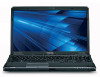
Related Toshiba Satellite A665-S6054 Manual Pages
Download the free PDF manual for Toshiba Satellite A665-S6054 and other Toshiba manuals at ManualOwl.com
User Manual - Page 30
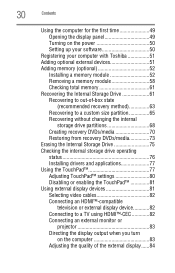
...49 Opening the display panel 49 Turning on the power 50 Setting up your software 50
Registering your computer with Toshiba 51 Adding optional external devices 51 Adding memory (optional 52
Installing a memory module 52 Removing a memory module 58 Checking total memory 61 Recovering the Internal Storage Drive 61 Recovering to out-of-box state
(recommended recovery method 63 Recovering to...
User Manual - Page 51
Getting Started
51
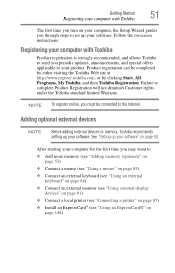
Registering your computer with Toshiba
The first time you turn on your computer, the Setup Wizard guides you through steps to set up your software. Follow the on-screen instructions.
Registering your computer with Toshiba
Product registration is strongly recommended, and allows Toshiba to send you periodic updates, announcements, and special offers applicable to your product....
User Manual - Page 160
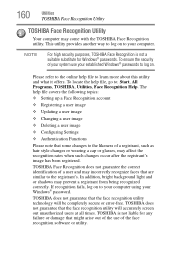
...
❖ Setting up a Face Recognition account
❖ Registering a user image
❖ Updating a user image
❖ Changing a user image
❖ Deleting a user image
❖ Configuring Settings
❖ ... to your computer using your Windows® password.
TOSHIBA does not guarantee that the face recognition utility technology will be completely secure or error-free. TOSHIBA does not ...
User Manual - Page 177
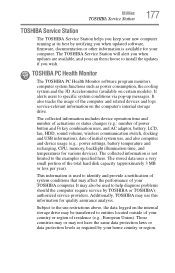
... best by notifying you when updated software, firmware, documentation or other information is available for your computer. The TOSHIBA Service Station will alert you when updates are available, and you can then choose to install the updates if you wish.
TOSHIBA PC Health Monitor
The TOSHIBA PC Health Monitor software program monitors computer system functions such as power consumption, the cooling...
User Manual - Page 181
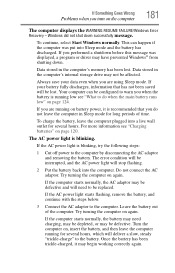
... RESUME FAILURE/Windows Error Recovery - Windows did not shut down successfully message.
To continue, select Start Windows normally. This can happen if the computer was put into Sleep mode and the battery has discharged. If you performed a shutdown before this message was displayed, a program or driver may have prevented Windows® from shutting down.
Data stored in the computer's memory has...
User Manual - Page 183
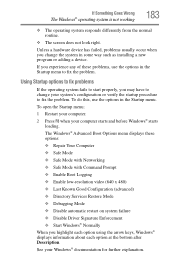
... and before Windows® starts
loading. The Windows® Advanced Boot Options menu displays these options: ❖ Repair Your Computer ❖ Safe Mode ❖ Safe Mode with Networking ❖ Safe Mode with Command Prompt ❖ Enable Boot Logging ❖ Enable low-resolution video (640 x 480) ❖ Last Known Good Configuration (advanced) ❖ Directory Services Restore...
User Manual - Page 185
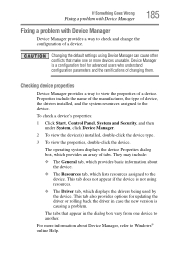
....
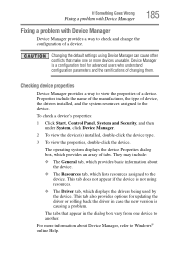
❖ The Driver tab, which displays the drivers being used by the device. This tab also provides options for updating the driver or rolling back the driver in case the new version is causing a problem.
The tabs that appear in the dialog box vary from one device to another.
For more information about Device Manager, refer to Windows® online Help...
User Manual - Page 188
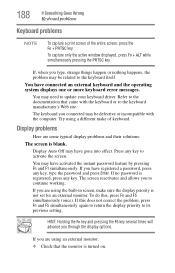
... external keyboard and the operating system displays one or more keyboard error messages.
You may need to update your keyboard driver. Refer to the documentation that came with the keyboard or to the keyboard manufacturer's Web site.
The keyboard you connected may be defective or incompatible with the computer. Try using a different make of keyboard...
User Manual - Page 197
If Something Goes Wrong
Modem problems
197
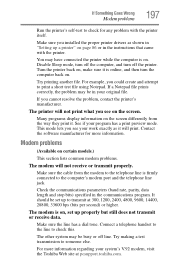
Run the printer's self-test to check for any problem with the printer itself.
Make sure you installed the proper printer drivers as shown in "Setting up a printer" on page 86 or in the instructions that came with the printer.
You may have connected the printer while the computer is on. Disable Sleep mode, turn off...
User Manual - Page 199
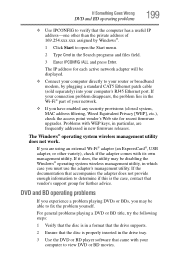
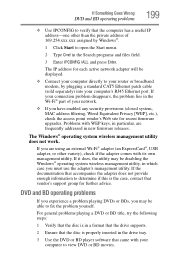
... network adapter will be displayed.
❖ Connect your computer directly to your router or broadband modem, by plugging a standard CAT5 Ethernet patch cable (sold separately) into your computer's RJ45 Ethernet port. If your connection problem disappears, the problem lies in the Wi-Fi® part of your network.
❖ If you have enabled any security provisions (closed system, MAC address...
User Manual - Page 201
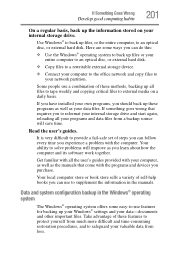
... are some ways you can do this:
❖ Use the Windows® operating system to back up files or your entire computer to an optical disc, or external hard disk.
❖ Copy files to a rewritable external storage device.
❖ Connect your computer to the office network and copy files to your network partition.
Some people use a combination of these methods, backing...
User Manual - Page 202
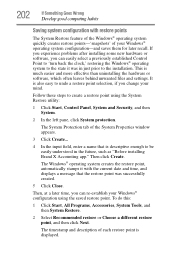
... can easily select a previously established Control Point to 'turn back the clock,' restoring the Windows® operating system to the state it was in just prior to the installation. This is much easier and more effective than uninstalling the hardware or software, which often leaves behind unwanted files and settings. It is also easy to...
User Manual - Page 203
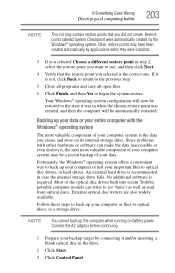
...; operating system offers a convenient way to back up your computer or just your important files to optical disc drives, or hard drives. An external hard drive is recommended in case the internal storage drive fails. No additional software is required. Most of the optical disc drives built into recent Toshiba portable computer models can write to (or 'burn') as well as read...
User Manual - Page 204
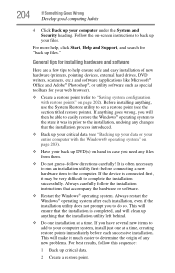
... your computer under the System and Security heading. Follow the on-screen instructions to back up your files.
For more help, click Start, Help and Support, and search for "back up files."
General tips for installing hardware and software
Here are a few tips to help ensure safe and easy installation of new hardware (printers, pointing devices, external hard drives...
User Manual - Page 205
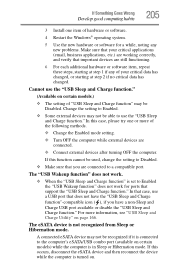
... external devices after turning OFF the computer.
If this function cannot be used, change the setting to Disabled.
❖ Make sure that you are connected to a compatible port.
The "USB Wakeup function" does not work.
❖ When the "USB Sleep and Charge function" is set to Enabled the "USB Wakeup function" does not work for ports that support the "USB Sleep...
User Guide 1 - Page 177
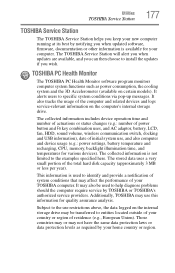
... best by notifying you when updated software, firmware, documentation or other information is available for your computer. The TOSHIBA Service Station will alert you when updates are available, and you can then choose to install the updates if you wish.
TOSHIBA PC Health Monitor
The TOSHIBA PC Health Monitor software program monitors computer system functions such as power consumption, the cooling...
User Guide 1 - Page 181
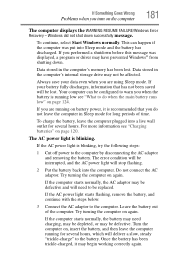
... RESUME FAILURE/Windows Error Recovery - Windows did not shut down successfully message.
To continue, select Start Windows normally. This can happen if the computer was put into Sleep mode and the battery has discharged. If you performed a shutdown before this message was displayed, a program or driver may have prevented Windows® from shutting down.
Data stored in the computer's memory has...
User Guide 1 - Page 183
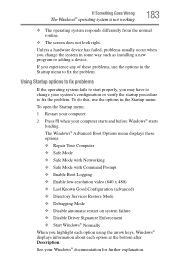
... and before Windows® starts
loading. The Windows® Advanced Boot Options menu displays these options: ❖ Repair Your Computer ❖ Safe Mode ❖ Safe Mode with Networking ❖ Safe Mode with Command Prompt ❖ Enable Boot Logging ❖ Enable low-resolution video (640 x 480) ❖ Last Known Good Configuration (advanced) ❖ Directory Services Restore...
User Guide 1 - Page 185
....
❖ The Driver tab, which displays the drivers being used by the device. This tab also provides options for updating the driver or rolling back the driver in case the new version is causing a problem.
The tabs that appear in the dialog box vary from one device to another.
For more information about Device Manager, refer to Windows® online Help...
User Guide 1 - Page 199
... network adapter will be displayed.
❖ Connect your computer directly to your router or broadband modem, by plugging a standard CAT5 Ethernet patch cable (sold separately) into your computer's RJ45 Ethernet port. If your connection problem disappears, the problem lies in the Wi-Fi® part of your network.
❖ If you have enabled any security provisions (closed system, MAC address...