
Toshiba Satellite C645-SP4137L driver and firmware
Drivers and firmware downloads for this Toshiba item

Related Toshiba Satellite C645-SP4137L Manual Pages
Download the free PDF manual for Toshiba Satellite C645-SP4137L and other Toshiba manuals at ManualOwl.com
User Manual - Page 6
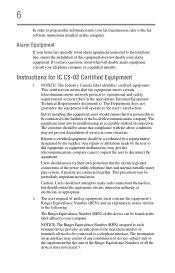
...fax transmission, refer to the fax software instructions installed on this computer.
Alarm Equipment
If your home has specially wired alarm equipment connected to the telephone line, ensure the installation of this equipment does not disable your alarm equipment. If you have questions...protection that the electrical ground connections of the power utility, telephone lines and internal metallic water...
User Manual - Page 9
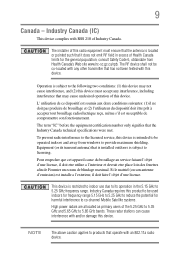
... interference to the licensed service, this device is intended to be operated indoors and away from windows to provide maximum shielding. Equipment (or its transmit antenna) that is installed outdoors is subject to... GHz to 5.25 GHz to reduce the potential for harmful interference to co-channel Mobile Satellite systems. High power radars are allocated as primary users of the 5.25 GHz to 5.35 GHz and...
User Manual - Page 30
30
Contents
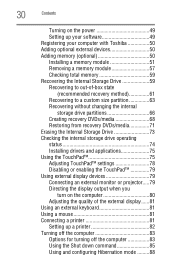
Turning on the power 49 Setting up your software 49 Registering your computer with Toshiba 50 Adding optional external devices 50 Adding memory (optional 50 Installing a memory module 51 Removing a memory module 57 Checking total memory 59 Recovering the Internal Storage Drive 59 Recovering to out-of-box state
(recommended recovery method 61 Recovering to a custom size ...
User Manual - Page 79
Getting Started
Using external display devices
79
NOTE
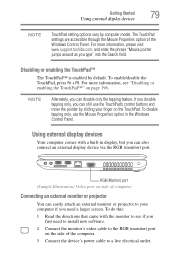
TouchPad setting options vary by computer model. The TouchPad settings are accessible through the Mouse Properties option of the Windows Control Panel. For more information, please visit www.support.toshiba.com, and enter the phrase "Mouse pointer jumps around as you type" into the Search field.
Disabling or enabling the TouchPad™...
User Manual - Page 83
Getting Started
Turning off the computer
83
Turning off the computer
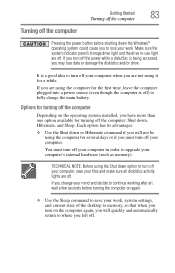
Pressing the power button before shutting down the Windows® operating system could cause you to lose your work. Make sure the system indicator panel's storage drive light and the drive in-use light are off. If you turn off the power while a disk/disc is being accessed, you...
User Manual - Page 149
... ❖ Setting up a Face Recognition account
❖ Registering a user image
❖ Updating a user image
❖ Changing a user image
❖ Deleting a user image
❖ Configuring Settings
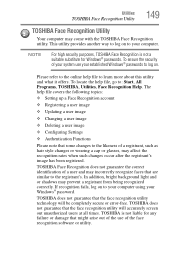
❖ ... to your computer using your Windows® password.
TOSHIBA does not guarantee that the face recognition utility technology will be completely secure or error-free. TOSHIBA does not ...
User Manual - Page 156
156
Utilities
TOSHIBA Service Station
TOSHIBA Service Station
The TOSHIBA Service Station helps you keep your new computer running at its best by notifying you when updated software, firmware, documentation or other information is available for your computer. The TOSHIBA Service Station will alert you when updates are available, and you can then choose to install the updates if you wish.
User Manual - Page 159
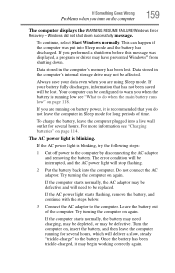
... RESUME FAILURE/Windows Error Recovery - Windows did not shut down successfully message.
To continue, select Start Windows normally. This can happen if the computer was put into Sleep mode and the battery has discharged. If you performed a shutdown before this message was displayed, a program or driver may have prevented Windows® from shutting down.
Data stored in the computer's memory has...
User Manual - Page 161
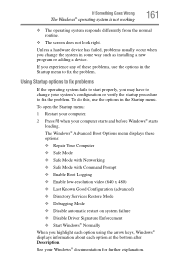
... and before Windows® starts
loading. The Windows® Advanced Boot Options menu displays these options: ❖ Repair Your Computer ❖ Safe Mode ❖ Safe Mode with Networking ❖ Safe Mode with Command Prompt ❖ Enable Boot Logging ❖ Enable low-resolution video (640 x 480) ❖ Last Known Good Configuration (advanced) ❖ Directory Services Restore...
User Manual - Page 163
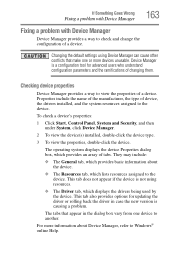
....
❖ The Driver tab, which displays the drivers being used by the device. This tab also provides options for updating the driver or rolling back the driver in case the new version is causing a problem.
The tabs that appear in the dialog box vary from one device to another.
For more information about Device Manager, refer to Windows® online Help...
User Manual - Page 166
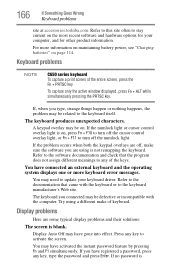
... not remapping the keyboard. Refer to the software documentation and check that the program does not assign different meanings to any of the keys.
You have connected an external keyboard and the operating system displays one or more keyboard error messages.
You may need to update your keyboard driver. Refer to the documentation that came...
User Manual - Page 171
....
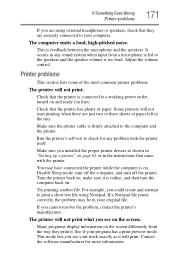
Make sure the printer cable is firmly attached to the computer and the printer.
Run the printer's self-test to check for any problem with the printer itself.
Make sure you installed the proper printer drivers as shown in "Setting up a printer" on page 82 or in the instructions that came with the printer.
You may have connected the printer while the computer is on...
User Manual - Page 173
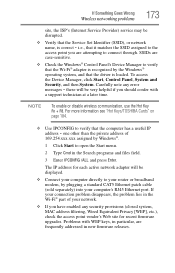
... network adapter will be displayed.
❖ Connect your computer directly to your router or broadband modem, by plugging a standard CAT5 Ethernet patch cable (sold separately) into your computer's RJ45 Ethernet port. If your connection problem disappears, the problem lies in the Wi-Fi® part of your network.
❖ If you have enabled any security provisions (closed system, MAC address...
User Manual - Page 175
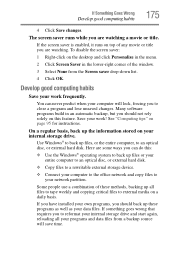
... are some ways you can do this:
❖ Use the Windows® operating system to back up files or your entire computer to an optical disc, or external hard disk.
❖ Copy files to a rewritable external storage device.
❖ Connect your computer to the office network and copy files to your network partition.
Some people use a combination of these methods, backing...
User Manual - Page 176
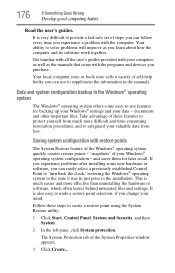
... can easily select a previously established Control Point to 'turn back the clock,' restoring the Windows® operating system to the state it was in just prior to the installation. This is much easier and more effective than uninstalling the hardware or software, which often leaves behind unwanted files and settings. It is also easy to...
User Manual - Page 179
... Goes Wrong
Develop good computing habits
179
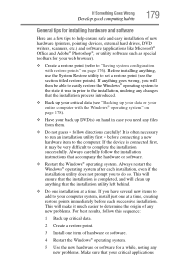
General tips for installing hardware and software
Here are a few tips to help ensure safe and easy installation of new hardware (printers, pointing devices, external hard drives, DVD writers, scanners, etc.) and software (applications like Microsoft® Office and Adobe® Photoshop®, or utility software such as special toolbars for...
User Manual - Page 181
If Something Goes Wrong
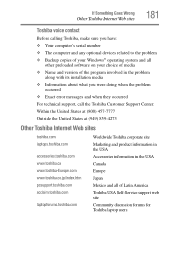
Other Toshiba Internet Web sites
181
Toshiba voice contact
Before calling Toshiba, make sure you have: ❖ Your computer's serial number ❖ The computer and any optional devices related to the problem ❖ Backup copies of your Windows® operating system and all
other preloaded software on your choice of media ❖ Name and version of the program ...
User Manual - Page 206
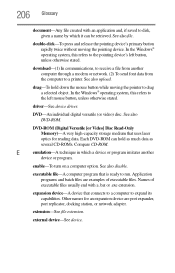
... from another computer through a modem or network. (2) To send font data from the computer to a printer. See also upload.
drag-To hold down the mouse button while moving the pointer to drag a selected object. In the Windows® operating system, this refers to
the left mouse button, unless otherwise stated.
driver-See device driver.
DVD-An individual digital versatile (or...
User Manual - Page 213
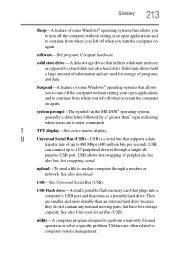
...connect up to 127 peripheral devices through a single all-
purpose USB port. USB allows hot swapping of peripherals. See
also bus, hot swapping, serial.
upload-To send a file to another computer through a modem or network. See also download.
USB-See Universal Serial Bus (USB).
USB Flash drive-A small, portable flash memory card that plugs into a computer's USB port and functions as a portable...
User Manual - Page 220
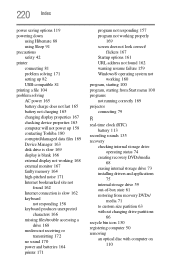
... not charging 165 changing display properties 167 checking device properties 163 computer will not power up 158 contacting Toshiba 180 corrupted/damaged data files 169 Device Manager 163 disk drive is slow 169 display is blank 166 external display not working 168 external monitor 167 faulty memory 164 high-pitched noise 171 Internet bookmarked site not
found 162 Internet connection is slow 162...