
Toshiba Tecra A8 driver and firmware

Related Toshiba Tecra A8 Manual Pages
Download the free PDF manual for Toshiba Tecra A8 and other Toshiba manuals at ManualOwl.com
User Manual - Page 6
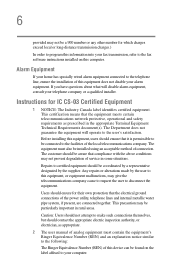
...fax software instructions installed on this computer.
Alarm Equipment
If your home has specially wired alarm equipment connected to the telephone line, ensure the installation of this equipment does not disable your alarm equipment. If you have questions about what will disable alarm equipment, consult your telephone company or a qualified installer.
Instructions... power ... The user manual of analog ...
User Manual - Page 9
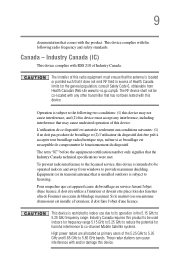
... interference to the licensed service, this device is intended to be operated indoors and away from windows to provide maximum shielding. Equipment (or its transmit antenna) that is installed outdoors is subject to ...GHz to 5.25 GHz to reduce the potential for harmful interference to co-channel Mobile Satellite systems. High power radars are allocated as primary users of the 5.25 GHz to 5.35 GHz and...
User Manual - Page 27
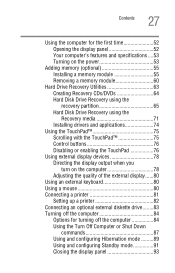
... 55 Removing a memory module 60
Hard Drive Recovery Utilities 63 Creating Recovery CDs/DVDs 64 Hard Disk Drive Recovery using the recovery partition 65 Hard Disk Drive Recovery using the Recovery media 71 Installing drivers and applications 74
Using the TouchPad 75 Scrolling with the TouchPad 75 Control buttons 76 Disabling or enabling the TouchPad 76
Using external display devices 78...
User Manual - Page 30
... from,
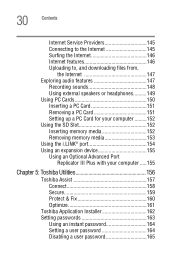
the Internet 147 Exploring audio features 147
Recording sounds 148 Using external speakers or headphones..........149 Using PC Cards 150 Inserting a PC Card 151 Removing a PC Card 151 Setting up a PC Card for your computer .........152 Using the SD Slot 152 Inserting memory media 152 Removing memory media 153 Using the i.LINK® port 154 Using an expansion device 155 Using an...
User Manual - Page 39
Introduction Service options
39
Service options
Toshiba offers a full line of optional service programs to complement its limited warranty. Toshiba's standard limited warranty, extended warranty, and service upgrade terms and conditions are available at warranty.toshiba.com.
To stay current on the most recent software and hardware options for your computer, and for other product information, be ...
User Manual - Page 45
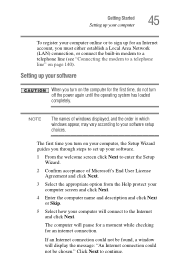
... Network (LAN) connection, or connect the built-in modem to a telephone line (see "Connecting the modem to a telephone line" on page 140).
Setting up your software
When you turn on the computer for the first time, do not turn off the power again until the operating system has loaded completely.
NOTE
The names of windows displayed, and the order in which windows...
User Manual - Page 47
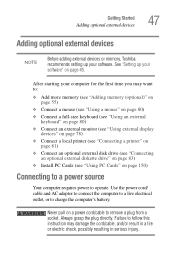
...see "Using external display
devices" on page 78) ❖ Connect a local printer (see "Connecting a printer" on
page 81) ❖ Connect an optional external disk drive (see "Connecting
an optional external diskette drive" on page 83) ❖ Install PC Cards (see "Using PC Cards" on page 150)
Connecting to a power source
Your computer requires power to operate. Use the power cord/ cable and AC...
User Manual - Page 74
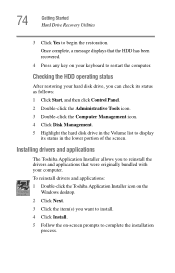
... the hard disk drive in the Volume list to display
its status in the lower portion of the screen.
Installing drivers and applications
The Toshiba Application Installer allows you to reinstall the drivers and applications that were originally bundled with your computer. To reinstall drivers and applications: 1 Double-click the Toshiba Application Installer icon on the
Windows desktop.
2 Click Next...
User Manual - Page 162
162 Toshiba Utilities Toshiba Application Installer
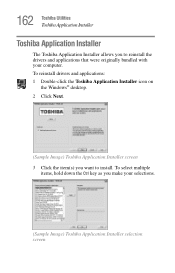
Toshiba Application Installer
The Toshiba Application Installer allows you to reinstall the drivers and applications that were originally bundled with your computer. To reinstall drivers and applications: 1 Double-click the Toshiba Application Installer icon on
the Windows® desktop. 2 Click Next.
(Sample Image) Toshiba Application Installer ...
User Manual - Page 196
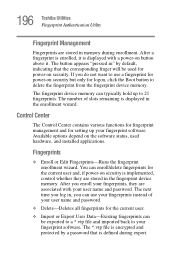
... the fingerprint device memory.
The fingerprint device memory can typically hold up to 21 fingerprints. The number of slots remaining is displayed in the enrollment wizard.
Control Center
The Control Center contains various functions for fingerprint management and for setting up your fingerprint software. Available options depend on the software status, used hardware, and installed applications...
User Manual - Page 227
.... Use the Windows® XP PC Card (PCMCIA) Wizard to set up the card. Refer to your Microsoft® documentation for more information, or refer to the documentation that came with the PC Card.
Some card manufacturers use special software called enablers to support their cards. Enablers result in nonstandard configurations that can cause problems when installing the PC Card.
If...
User Manual - Page 230
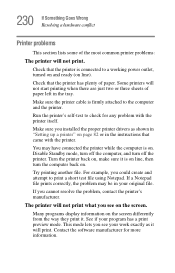
....
Make sure the printer cable is firmly attached to the computer and the printer.
Run the printer's self-test to check for any problem with the printer itself.
Make sure you installed the proper printer drivers as shown in "Setting up a printer" on page 82 or in the instructions that came with the printer.
You may have connected the printer while the computer is on...
User Manual - Page 234
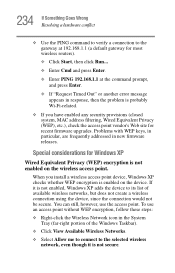
..., MAC address filtering, Wired Equivalent Privacy (WEP), etc.), check the access point vendor's Web site for recent firmware upgrades. Problems with WEP keys, in particular, are frequently addressed in new firmware releases.
Special considerations for Windows XP
Wired Equivalent Privacy (WEP) encryption is not enabled on the wireless access point.
When you install a wireless access point device...
User Manual - Page 239
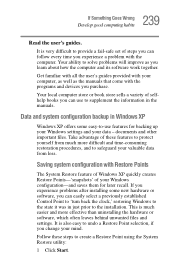
...-safe set of steps you can follow every time you experience a problem with the computer. Your ability to solve problems will improve as you learn about how the computer and its software work together.
Get familiar with all the user's guides provided with your computer, as well as the manuals that come with the programs and devices you...
User Manual - Page 244
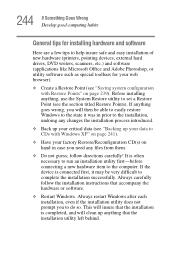
244 If Something Goes Wrong Develop good computing habits
General tips for installing hardware and software
Here are a few tips to help insure safe and easy installation of new hardware (printers, pointing devices, external hard drives, DVD writers, scanners, etc.) and software (applications like Microsoft Office and Adobe Photoshop, or utility software such as special toolbars for your web ...
User Manual - Page 245
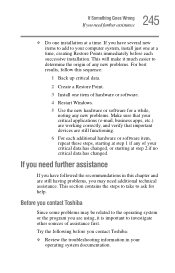
...Install one item of hardware or software.
4 Restart Windows.
5 Use the new hardware or software for a while, noting any new problems. Make sure that your critical applications (e-mail, business apps, etc.) are working correctly, and verify that important devices...contains the steps to take to ask for help.
Before you contact Toshiba
Since some problems may be related to the operating system or the ...
User Manual - Page 291
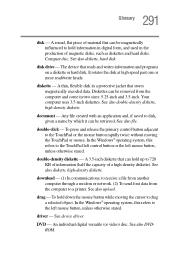
... from another computer through a modem or network. (2) To send font data from the computer to a printer. See also upload.
drag - To hold down the mouse button while moving the cursor to drag a selected object. In the Windows® operating system, this refers to the left mouse button, unless otherwise stated.
driver - See device driver.
DVD - An individual digital versatile (or...
User Manual - Page 298
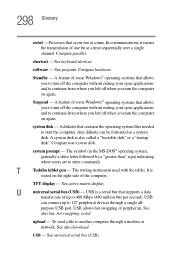
...-matrix display.
U
universal serial bus (USB) - USB is a serial bus that supports a data
transfer rate of up to 480 Mbps (480 million bits per second). USB
can connect up to 127 peripheral devices through a single all-
purpose USB port. USB allows hot swapping of peripherals. See
also bus, hot swapping, serial.
upload - To send a file to another computer through a modem or network. See...
User Manual - Page 302
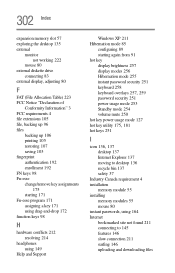
... mode 254 volume mute 250 hot key power usage mode 127
hot key utility 175, 181
hot keys 251
I
icon 136, 137
desktop 137 Internet Explorer 137 moving to desktop 136 recycle bin 137 safety 37 Industry Canada requirement 4 installation memory module 55 installing memory modules 55 mouse 80 instant passwords, using 164 Internet bookmarked site not found 211 connecting...
User Manual - Page 303
...cover 57
memory module installation 55
installing inserting into socket 58
removing 61 microphone 148 modem
determining COM port 139 problem solving 231 resetting port to default settings
139 upgrading 139 monitor 78 connecting 78 not working 220 mouse installing 80 serial 80
N
network accessing 142 Dial-Up Networking Wizard 142
networking wireless 141
O
opening the display panel 52 optical drive...