
Toshiba Satellite C855 driver and firmware
Drivers and firmware downloads for this Toshiba item

Related Toshiba Satellite C855 Manual Pages
Download the free PDF manual for Toshiba Satellite C855 and other Toshiba manuals at ManualOwl.com
User Guide - Page 1
Satellite®/Satellite Pro® C800 Series User's Guide
If you need assistance: Technical support is available online at Toshiba's Web site at support.toshiba.com. At this Web site, you will find answers for many commonly asked technical questions plus many downloadable software drivers, BIOS updates, and other downloads. For more information, see "If Something Goes Wrong" on page 135 in this...
User Guide - Page 22
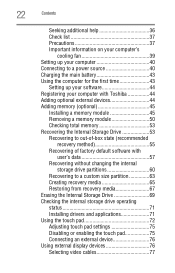
... first time 43
Setting up your software 44 Registering your computer with Toshiba 44 Adding optional external devices 44 Adding memory (optional 45
Installing a memory module 45 Removing a memory module 50 Checking total memory 53 Recovering the Internal Storage Drive 53 Recovering to out-of-box state (recommended
recovery method 55 Recovering of factory default software with
user's data...
User Guide - Page 44
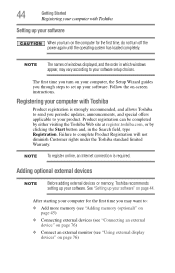
... the power again until the operating system has loaded completely.
NOTE
The names of windows displayed, and the order in which windows appear, may vary according to your software setup choices.
The first time you turn on your computer, the Setup Wizard guides you through steps to set up your software. Follow the on-screen instructions.
Registering your computer with Toshiba
Product registration...
User Guide - Page 53
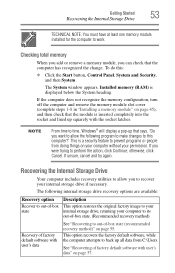
...Recovering the Internal Storage Drive
TECHNICAL NOTE: You must have at least one memory module installed for the computer to work.
Checking total memory
When you add or remove a memory module, you can check that the computer has recognized the change. To do this:
❖ Click the Start button, Control Panel, System and Security, and then System.
The System window appears. Installed memory (RAM...
User Guide - Page 68
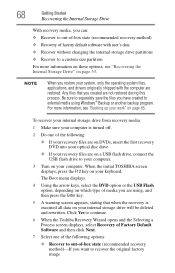
... recover your internal storage drive from recovery media:
1 Make sure your computer is turned off.
2 Do one of the following:
❖ If your recovery files are on DVDs, insert the first recovery DVD into your optical disc drive.
❖ If your recovery files are on a USB flash drive, connect the USB flash drive to your computer.
3 Turn on your computer. When the initial TOSHIBA screen displays...
User Guide - Page 126
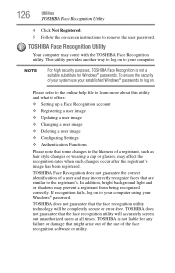
...Windows® passwords to log on.
Please refer to the online help file to learn more about this utility and what it offers:
❖ Setting up a Face Recognition account
❖ Registering a user image
❖ Updating... your computer using your Windows® password.
TOSHIBA does not guarantee that the face recognition utility technology will be completely secure or error-free. TOSHIBA does ...
User Guide - Page 134
134
Utilities
TOSHIBA Service Station
TOSHIBA Service Station
The TOSHIBA Service Station helps you keep your new computer running at its best by notifying you when updated software, firmware, documentation or other information is available for your computer. The TOSHIBA Service Station will alert you when updates are available, and you can then choose to install the updates if you wish.
User Guide - Page 137
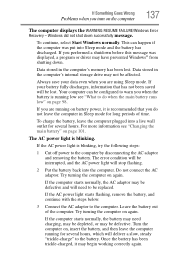
... was displayed, a program or driver may have prevented Windows® from shutting down.
Data stored in the computer's memory has been lost. Data stored in the computer's internal storage drive may...error condition will be interrupted, and the AC power light will stop flashing.
2 Put the battery back into the computer. Do not connect the AC adaptor. Try turning the computer on again.
If the computer...
User Guide - Page 139
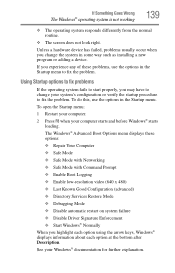
... and before Windows® starts
loading. The Windows® Advanced Boot Options menu displays these options: ❖ Repair Your Computer ❖ Safe Mode ❖ Safe Mode with Networking ❖ Safe Mode with Command Prompt ❖ Enable Boot Logging ❖ Enable low-resolution video (640 x 480) ❖ Last Known Good Configuration (advanced) ❖ Directory Services Restore...
User Guide - Page 141

....
❖ The Driver tab, which displays the drivers being used by the device. This tab also provides options for updating the driver or rolling back the driver in case the new version is causing a problem.
The tabs that appear in the dialog box vary from one device to another.
For more information about Device Manager, refer to Windows® online Help...
User Guide - Page 149
If Something Goes Wrong
Wireless networking problems
149
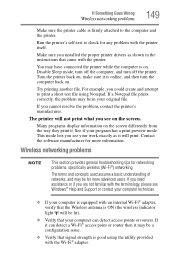
Make sure the printer cable is firmly attached to the computer and the printer.
Run the printer's self-test to check for any problem with the printer itself.
Make sure you installed the proper printer drivers as shown in the instructions that came with the printer.
You may have connected the printer while the computer is on. Disable...
User Guide - Page 150
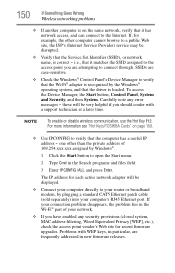
... network adapter will be displayed.
❖ Connect your computer directly to your router or broadband modem, by plugging a standard CAT5 Ethernet patch cable (sold separately) into your computer's RJ45 Ethernet port. If your connection problem disappears, the problem lies in the Wi-Fi® part of your network.
❖ If you have enabled any security provisions (closed system, MAC address...
User Guide - Page 152
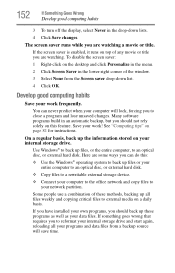
... are some ways you can do this:
❖ Use the Windows® operating system to back up files or your entire computer to an optical disc, or external hard disk.
❖ Copy files to a rewritable external storage device.
❖ Connect your computer to the office network and copy files to your network partition.
Some people use a combination of these methods, backing...
User Guide - Page 153
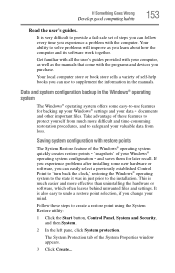
...-safe set of steps you can follow every time you experience a problem with the computer. Your ability to solve problems will improve as you learn about how the computer and its software work together.
Get familiar with all the user's guides provided with your computer, as well as the manuals that come with the programs and devices you...
User Guide - Page 154
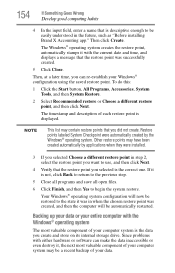
... be automatically restarted.
Backing up your data or your entire computer with the Windows® operating system
The most valuable component of your computer system is the data you create and store on its internal storage drive. Since problems with either hardware or software can make the data inaccessible or even destroy it, the next most...
User Guide - Page 155
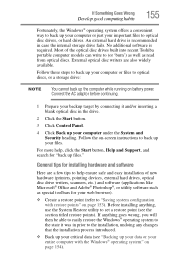
... on-screen instructions to back up your files.
For more help, click the Start button, Help and Support, and search for "back up files."
General tips for installing hardware and software
Here are a few tips to help ensure safe and easy installation of new hardware (printers, pointing devices, external hard drives, optical disc drive writers, scanners, etc.) and software (applications like...
User Guide - Page 156
...
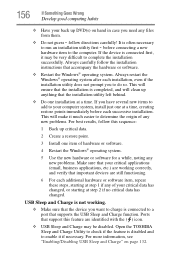
hardware item to the computer. If the device is connected first, it may be very difficult to complete the installation successfully. Always carefully follow the installation instructions that accompany the hardware or software.
❖ Restart the Windows® operating system. Always restart the Windows® operating system after each installation, even if the installation utility does not...
User Guide - Page 175
...-ROM (Digital Versatile [or Video] Disc Read-Only Memory)-A very high-capacity storage medium that uses laser optics for reading data. Each DVD-ROM can hold as much data as several CD-ROMs. Compare CD-ROM.
E
emulation-A technique in which a device or program imitates another
device or program.
enable-To turn on a computer option. See also disable.
eSATA-An external device that supports hot...
User Guide - Page 182
...-matrix display.
U
Universal Serial Bus (USB)-USB is a serial bus that supports data
transfer. USB allows hot swapping of peripherals. See also bus, hot
swapping, serial.
upload-To send a file to another computer through a modem or network. See also download.
USB-See Universal Serial Bus (USB).
USB Flash drive-A small, portable flash memory card that plugs into a computer's USB port and...
User Guide - Page 188
...
safety 37 printer
troubleshooting 148 problem solving
contacting Toshiba 158 Startup options 139 program, starting 84 program, starting from Start menu 85 projector connecting 77
R
real-time clock (RTC) battery 93
recording sounds 112 recovery
checking internal storage drive operating status 71
creating recovery media 65 erasing internal storage drive 69 installing drivers and applications...