
Toshiba Satellite C855D-S5320 driver and firmware
Drivers and firmware downloads for this Toshiba item
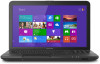
Related Toshiba Satellite C855D-S5320 Manual Pages
Download the free PDF manual for Toshiba Satellite C855D-S5320 and other Toshiba manuals at ManualOwl.com
User Guide - Page 1
...Satellite Pro® C800/L800/S800 Series User's Guide
If you need assistance: Technical support is available online at Toshiba's Web site at support.toshiba.com. At this Web site, you will find answers for many commonly asked technical questions plus many downloadable software drivers, BIOS updates, and other downloads. For more information, see "If Something Goes Wrong" on page 128 in this guide...
User Guide - Page 20
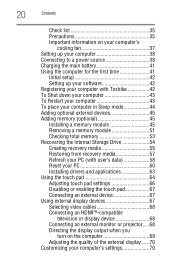
... setup 42 Setting up your software 42 Registering your computer with Toshiba 42 To Shut down your computer 43 To Restart your computer 43 To place your computer in Sleep mode 44 Adding optional external devices 45 Adding memory (optional 45 Installing a memory module 45 Removing a memory module 51 Checking total memory 53 Recovering the Internal Storage Drive 54 Creating recovery...
User Guide - Page 42
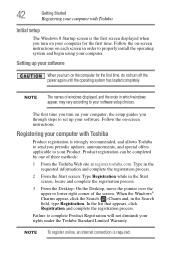
... off the power again until the operating system has loaded completely.
NOTE
The names of windows displayed, and the order in which windows appear, may vary according to your software setup choices.
The first time you turn on your computer, the setup guides you through steps to set up your software. Follow the on-screen instructions.
Registering your computer with Toshiba
Product registration...
User Guide - Page 63
...
63
Recovering the Internal Storage Drive
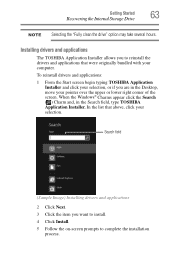
NOTE Selecting the "Fully clean the drive" option may take several hours.
Installing drivers and applications
The TOSHIBA Application Installer allows you to reinstall the drivers and applications that were originally bundled with your computer.
To reinstall drivers and applications:
1 From the Start screen begin typing TOSHIBA Application Installer and...
User Guide - Page 104
...Your Computer's Features
Windows® Store
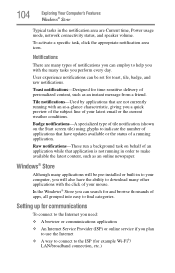
Typical tasks in the notification area are Current time, Power usage mode, network ...installed or built-in to your computer, you will also have the ability to download many other applications with the click of your mouse. In the Windows® Store you can search for and browse thousands of apps, all grouped into easy to find categories.
Setting...
User Guide - Page 126
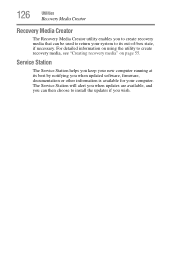
... to create recovery media, see "Creating recovery media" on page 55.
Service Station
The Service Station helps you keep your new computer running at its best by notifying you when updated software, firmware, documentation or other information is available for your computer. The Service Station will alert you when updates are available, and you can then choose to install the updates if you...
User Guide - Page 127
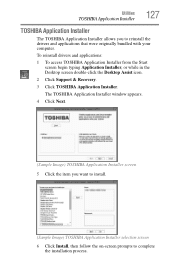
... were originally bundled with your computer.
To reinstall drivers and applications:
1 To access TOSHIBA Application Installer from the Start screen begin typing Application Installer, or while in the Desktop screen double-click the Desktop Assist icon.
2 Click Support & Recovery.
3 Click TOSHIBA Application Installer.
The TOSHIBA Application Installer window appears.
4 Click Next.
(Sample Image...
User Guide - Page 130
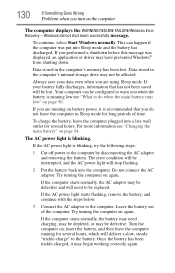
... FAILURE/Windows Error Recovery - Windows did not shut down successfully message.
To continue, select Start Windows normally. This can happen if the computer was put into Sleep mode and the battery has discharged. If you performed a shutdown before this message was displayed, an application or driver may have prevented Windows® from shutting down.
Data stored in the computer's memory has...
User Guide - Page 133
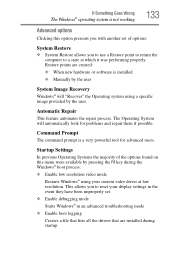
... presents you with another set of options:
System Restore
❖ System Restore allows you to use a Restore point to return the computer to a state at which it was performing properly. Restore points are created:
❖ When new hardware or software is installed
❖ Manually by the user
System Image Recovery
Windows® will "Recover" the Operating system using...
User Guide - Page 134
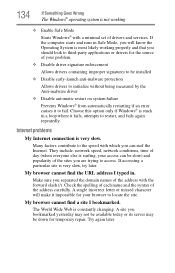
... Windows® with a minimal set of drivers and services. If the computer starts and runs in Safe Mode, you will know the Operating System is most likely working properly and that you should look to third-party applications or drivers for the source of your problem.
❖ Disable driver signature enforcement
Allows drivers containing improper signatures to be installed...
User Guide - Page 135
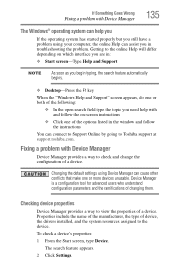
... follow the on-screen instructions
❖ Click one of the options listed in the window and follow the instructions
You can connect to Support Online by going to Toshiba support at support.toshiba.com.
Fixing a problem with Device Manager
Device Manager provides a way to check and change the configuration of a device.
Changing the default settings using Device Manager can cause other conflicts...
User Guide - Page 136
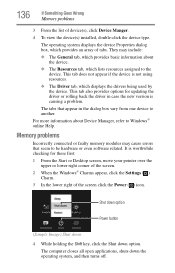
... also provides options for updating the driver or rolling back the driver in case the new version is causing a problem.
The tabs that appear in the dialog box vary from one device to another.
For more information about Device Manager, refer to Windows® online Help.
Memory problems
Incorrectly connected or faulty memory modules may cause errors that seem to...
User Guide - Page 138
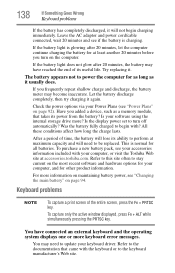
... battery discharge completely, then try charging it again.
Check the power options via your Power Plans (see "Power Plans" on page 92). Have you added a device, such as a memory module, that takes its power from the battery? Is your software using the internal storage drive more? Is the display power set to turn off automatically? Was the battery fully charged to begin...
User Guide - Page 145
If Something Goes Wrong
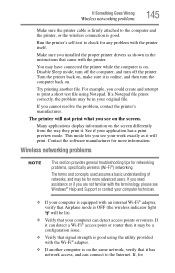
Wireless networking problems
145
Make sure the printer cable is firmly attached to the computer and the printer, or the wireless connection is good.
Run the printer's self-test to check for any problem with the printer itself.
Make sure you installed the proper printer drivers as shown in the instructions that came with the printer.
You may have connected the...
User Guide - Page 146
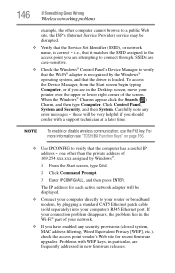
... network adapter will be displayed.
❖ Connect your computer directly to your router or broadband modem, by plugging a standard CAT5 Ethernet patch cable (sold separately) into your computer's RJ45 Ethernet port. If your connection problem disappears, the problem lies in the Wi-Fi® part of your network.
❖ If you have enabled any security provisions (closed system, MAC address...
User Guide - Page 148
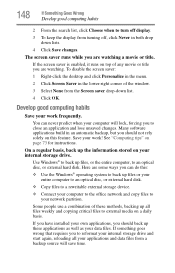
... are some ways you can do this:
❖ Use the Windows® operating system to back up files or your entire computer to an optical disc, or external hard disk.
❖ Copy files to a rewritable external storage device.
❖ Connect your computer to the office network and copy files to your network partition.
Some people use a combination of these methods, backing...
User Guide - Page 149
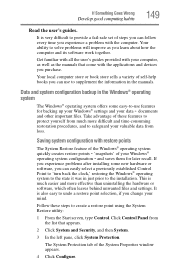
... can easily select a previously established Control Point to 'turn back the clock,' restoring the Windows® operating system to the state it was in just prior to the installation. This is much easier and more effective than uninstalling the hardware or software, which often leaves behind unwanted files and settings. It is also easy to...
User Guide - Page 151
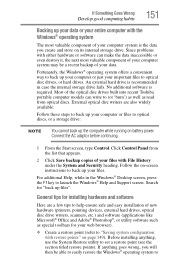
... instructions to back up your files.
For additional Help, while in the Windows® Desktop screen, press the F1 key to launch the Windows® Help and Support screen. Search for "back up files".
General tips for installing hardware and software
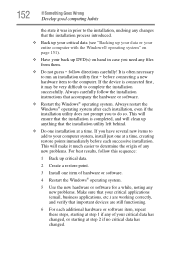
Here are a few tips to help ensure safe and easy installation of new hardware (printers, pointing devices, external hard drives, optical...
User Guide - Page 152
...
hardware item to the computer. If the device is connected first, it may be very difficult to complete the installation successfully. Always carefully follow the installation instructions that accompany the hardware or software.
❖ Restart the Windows® operating system. Always restart the Windows® operating system after each installation, even if the installation utility does not...
User Guide - Page 169
...-ROM (Digital Versatile [or Video] Disc Read-Only Memory)-A very high-capacity storage medium that uses laser optics for reading data. Each DVD-ROM can hold as much data as several CD-ROMs. Compare CD-ROM.
E
emulation-A technique in which a device or program imitates another
device or program.
enable-To turn on a computer option. See also disable.
eSATA-An external device that supports hot...