
Toshiba Satellite P105-S6134 driver and firmware
Drivers and firmware downloads for this Toshiba item
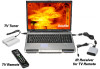
Related Toshiba Satellite P105-S6134 Manual Pages
Download the free PDF manual for Toshiba Satellite P105-S6134 and other Toshiba manuals at ManualOwl.com
User Guide 2 - Page 6
6
Toshiba USB TV Tuner Quick Guide
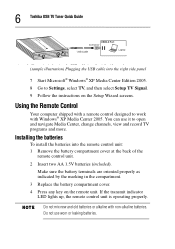
( l ill i ) l i h USB bl i h i h id l (sample illustration) Plugging the USB cable into the right side panel
7 Start Microsoft® Windows® XP Media Center Edition 2005. 8 Go to Settings, select TV, and then select Setup TV Signal. 9 Follow the instructions on the Setup Wizard screens.
Using the Remote Control
Your computer shipped with a remote control ...
User Guide 2 - Page 7
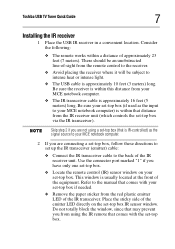
... transceiver (emitter) cable:
❖ Connect the IR transceiver cable to the back of the IR receiver unit. Use the connector port marked "1" if you have only one set-top box.
❖ Locate the remote control (IR) sensor window on your set-top box. This window is usually located at the front of the equipment. Refer to the manual that comes...
User Guide - Page 6
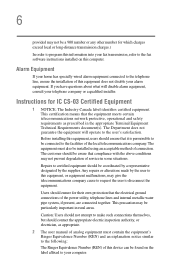
...fax software instructions installed on this computer.
Alarm Equipment
If your home has specially wired alarm equipment connected to the telephone line, ensure the installation of this equipment does not disable your alarm equipment. If you have questions about what will disable alarm equipment, consult your telephone company or a qualified installer.
Instructions... power ... The user manual of analog ...
User Guide - Page 9
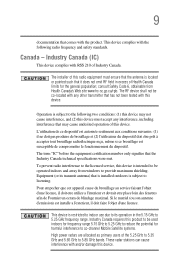
... interference to the licensed service, this device is intended to be operated indoors and away from windows to provide maximum shielding. Equipment (or its transmit antenna) that is installed outdoors is subject to... GHz to 5.25 GHz to reduce the potential for harmful interference to co-channel Mobile Satellite systems. High power radars are allocated as primary users of the 5.25 GHz to 5.35 GHz and...
User Guide - Page 38
38
Introduction Service options
Service options
Toshiba offers a full line of optional service programs to complement its limited warranty. Toshiba's standard limited warranty, extended warranty, and service upgrade terms and conditions are available at warranty.toshiba.com.
To stay current on the most recent software and hardware options for your computer, and for other product information, be ...
User Guide - Page 44
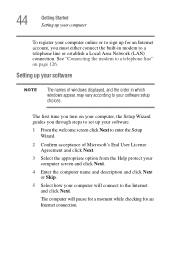
... or establish a Local Area Network (LAN) connection. See "Connecting the modem to a telephone line" on page 126.
Setting up your software
NOTE
The names of windows displayed, and the order in which windows appear, may vary according to your software setup choices.
The first time you turn on your computer, the Setup Wizard guides you through steps to set up your software.
1 From the welcome...
User Guide - Page 45
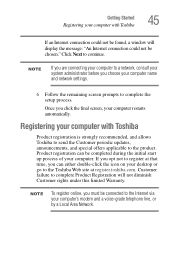
Getting Started Registering your computer with Toshiba
45
If an Internet connection could not be found, a window will display the message: "An Internet connection could not be chosen." Click Next to continue.
NOTE
If you are connecting your computer to a network, consult your system administrator before you choose your computer name and network settings.
6 Follow the remaining screen prompts ...
User Guide - Page 46
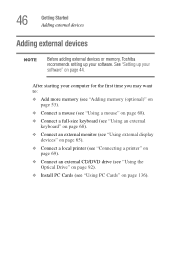
... a full-size keyboard (see "Using an external keyboard" on page 68).
❖ Connect an external monitor (see "Using external display devices" on page 65).
❖ Connect a local printer (see "Connecting a printer" on page 69).
❖ Connect an external CD/DVD drive (see "Using the Optical Drive" on page 92).
❖ Install PC Cards (see "Using PC Cards" on page 136).
User Guide - Page 54
...NOTE
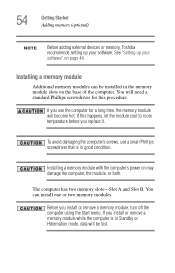
Before adding external devices or memory, Toshiba recommends setting up your software. See "Setting up your software" on page 44.
Installing a memory module
Additional memory modules can be installed in the memory module slots on the base of the computer. You will need a standard Phillips screwdriver for this procedure.
If you use the computer for a long time, the memory module will become...
User Guide - Page 167
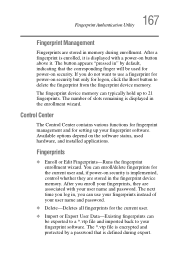
... the fingerprint device memory.
The fingerprint device memory can typically hold up to 21 fingerprints. The number of slots remaining is displayed in the enrollment wizard.
Control Center
The Control Center contains various functions for fingerprint management and for setting up your fingerprint software. Available options depend on the software status, used hardware, and installed applications...
User Guide - Page 198
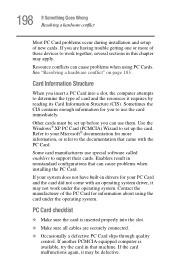
.... Use the Windows® XP PC Card (PCMCIA) Wizard to set up the card. Refer to your Microsoft® documentation for more information, or refer to the documentation that came with the PC Card.
Some card manufacturers use special software called enablers to support their cards. Enablers result in nonstandard configurations that can cause problems when installing the PC Card.
If...
User Guide - Page 201
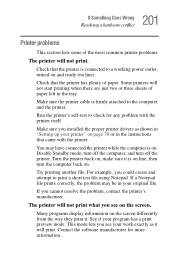
... sure the printer cable is firmly attached to the computer and the printer.
Run the printer's self-test to check for any problem with the printer itself.
Make sure you installed the proper printer drivers as shown in "Setting up your printer" on page 70 or in the instructions that came with the printer.
You may have connected the printer while the computer is on...
User Guide - Page 205
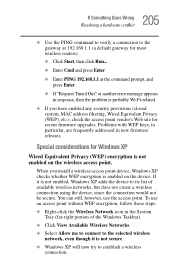
..., MAC address filtering, Wired Equivalent Privacy (WEP), etc.), check the access point vendor's Web site for recent firmware upgrades. Problems with WEP keys, in particular, are frequently addressed in new firmware releases.
Special considerations for Windows XP
Wired Equivalent Privacy (WEP) encryption is not enabled on the wireless access point.
When you install a wireless access point device...
User Guide - Page 210
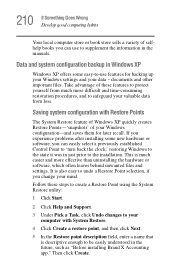
... problems after installing some new hardware or software, you can easily select a previously established Control Point to 'turn back the clock,' restoring Windows to the state it was in just prior to the installation. This is much easier and more effective than uninstalling the hardware or software, which often leaves behind unwanted files and settings. It is...
User Guide - Page 215
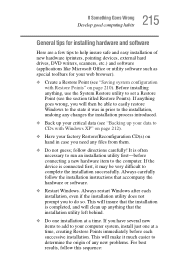
215 If Something Goes Wrong
Develop good computing habits
General tips for installing hardware and software
Here are a few tips to help insure safe and easy installation of new hardware (printers, pointing devices, external hard drives, DVD writers, scanners, etc.) and software (applications like Microsoft Office or utility software such as special toolbars for your web browser).
❖ Create a...
User Guide - Page 216
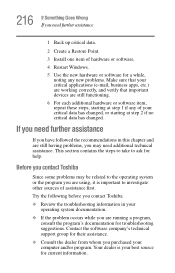
...
2 Create a Restore Point.
3 Install one item of hardware or software.
4 Restart Windows.
5 Use the new hardware or software for a while, noting any new ...take to ask for help.
Before you contact Toshiba
Since some problems may be related to the ... Contact the software company's technical support group for their assistance.
❖ Consult the dealer from whom you purchased your computer and/or ...
User Guide - Page 217
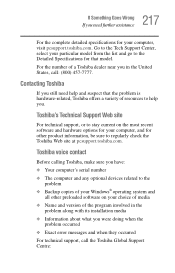
....toshiba.com.
Toshiba voice contact
Before calling Toshiba, make sure you have: ❖ Your computer's serial number ❖ The computer and any optional devices related to the
problem ❖ Backup copies of your Windows® operating system and
all other preloaded software on your choice of media ❖ Name and version of the program involved in the
problem along with its installation...
User Guide - Page 260
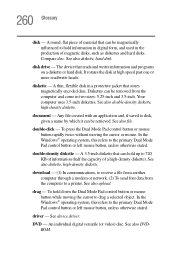
... also diskette, high-density diskette.
download - (1) In communications, to receive a file from another computer through a modem or network. (2) To send font data from the computer to a printer. See also upload.
drag - To hold down the Dual Mode Pad control button or mouse button while moving the cursor to drag a selected object. In the Windows® operating system, this...
User Guide - Page 267
... display.
U
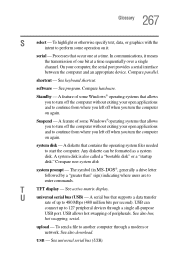
universal serial bus (USB) - A serial bus that supports a data transfer
rate of up to 480 Mbps (480 million bits per second). USB can
connect up to 127 peripheral devices through a single all-purpose
USB port. USB allows hot swapping of peripherals. See also bus,
hot swapping, serial.
upload - To send a file to another computer through a modem or network. See also download.
USB...
User Guide - Page 272
... 114
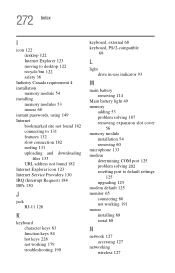
Main battery light 49 memory
adding 53 problem solving 187 removing expansion slot cover
56 memory module
installation 54 removing 60 microphone 133 modem determining COM port 125 problem solving 202 resetting port to default settings
125 upgrading 125 modem default 125 monitor 65 connecting 66 not working 191 mouse installing 68 serial 68
N
network 127 accessing 127
networking wireless 127