
Samsung B2330 driver and firmware
Drivers and firmware downloads for this Samsung item

Related Samsung B2330 Manual Pages
Download the free PDF manual for Samsung B2330 and other Samsung manuals at ManualOwl.com
User Manual (user Manual) (ver.1.0) (English) - Page 2
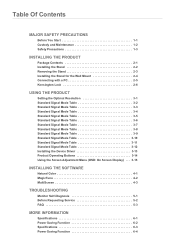
... Signal Mode Table 3-12 Installing the Device Driver 3-13 Product Operating Buttons 3-14 Using the Screen Adjustment Menu (OSD: On Screen Display) . . . 3-15
INSTALLING THE SOFTWARE
Natural Color 4-1 MagicTune 4-2 MultiScreen 4-3
TROUBLESHOOTING
Monitor Self-Diagnosis 5-1 Before Requesting Service 5-2 FAQ 5-3
MORE INFORMATION
Specifications 6-1 Power Saving Function 6-2 Specifications...
User Manual (user Manual) (ver.1.0) (English) - Page 4
... of this manual is reserved by Samsung Electronics, Co., Ltd. The contents of this manual may not be partially or in whole reproduced, distributed or used in any form without the written permission of Samsung Electronics, Co., Ltd. The SAMSUNG logo and SyncMaster are the registered trademarks of Samsung Electronics, Co., Ltd. Microsoft, Windows and Windows NT are...
User Manual (user Manual) (ver.1.0) (English) - Page 5
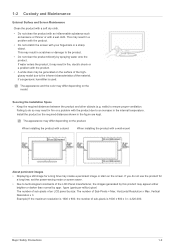
...color may differ depending on the model.
Securing the Installation Space • Keep the required distances between the product...installing the product with a stand
When installing the product with a wall-mount
About persistent images
• Displaying a still image for a long time may create a persistent image or stain on the screen. If you do not use the product for a long time, set the power...
User Manual (user Manual) (ver.1.0) (English) - Page 7
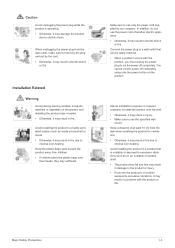
... reached. • When a problem occurs with the
product, you must unplug the power plug to cut the power off completely. You cannot cut the power off completely using only the power button on the product.
Ask an installation engineer or relevant company to install the product onto the wall. • Otherwise, it may result in injury...
User Manual (user Manual) (ver.1.0) (English) - Page 8
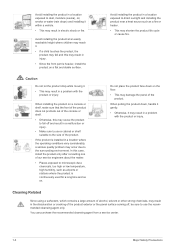
... a location where the operating conditions vary considerably, a serious quality problem may occur due to the surrounding environment. In this case, install the product only after consulting one of our service engineers about the matter.
• Places exposed to microscopic dust, chemicals, too high or low temperature, high humidity, such as airports or...
User Manual (user Manual) (ver.1.0) (English) - Page 12
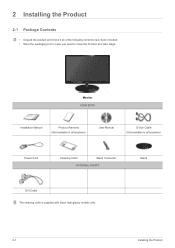
...; Store the packaging box in case you need to move the Product at a later stage.
Monitor CONTENTS
Installation Manual
Product Warranty (Not available in all locations)
User Manual
D-Sub Cable (Not available in all locations)
Power Cord
Cleaning Cloth
Stand Connector
OPTIONAL PARTS
DVI Cable The cleaning cloth is supplied with black high-glossy models only.
Stand...
User Manual (user Manual) (ver.1.0) (English) - Page 13
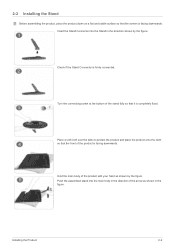
2-2 Installing the Stand
Before assembling the product, place the product down on a flat and stable surface so that the screen is facing downwards. Insert the Stand ... hand as shown by the figure. Push the assembled stand into the main body in the direction of the arrow as shown in the figure.
Installing the Product
2-2
User Manual (user Manual) (ver.1.0) (English) - Page 14
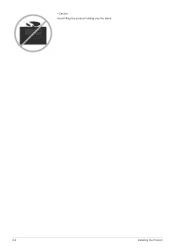
- Caution Avoid lifting the product holding only the stand.
2-2
Installing the Product
User Manual (user Manual) (ver.1.0) (English) - Page 15
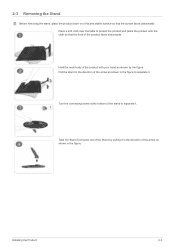
... to separate it.
Take the Stand Connector out of the Stand by pulling it in the direction of the arrow as shown in the figure.
Installing the Product
2-3
User Manual (user Manual) (ver.1.0) (English) - Page 16
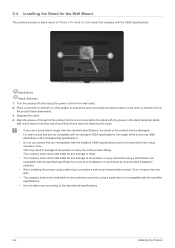
2-4 Installing the Stand for the Wall Mount
This product provides a stand mount of 75 mm x 75 mm(3.0 x 3.0 inches) that complies with the VESA specifications.
Stand Mount
Stand (Optional)
1. Turn the product off and unplug the power cord from the wall outlet. 2. Place a soft cloth or cushion on a flat surface to protect the panel...
User Manual (user Manual) (ver.1.0) (English) - Page 17
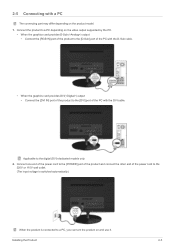
... the product to the [D-Sub] port of the PC with the D-Sub cable.
• When the graphics card provides DVI() output • Connect the [DVI IN] port of the product to the [DVI] port of the PC with the DVI cable.
Applicable to the digital (DVI)-dedicated models only.
2. Connect one end of the power cord to the [POWER] port of the product and connect...
User Manual (user Manual) (ver.1.0) (English) - Page 18

When both the DVI () and D-Sub () cables are connected, you can select the input signal by pressing the[
]button.
2-5
Installing the Product
User Manual (user Manual) (ver.1.0) (English) - Page 19
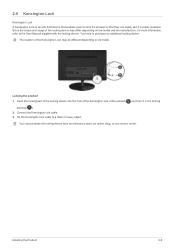
... of the locking device into the hole of the Kensington lock of the product(
) and turn it in the locking
direction( ). 2. Connect the Kensington lock cable. 3. Tie the Kensington lock cable to a desk or heavy object.
You can purchase the locking device from an electronics store, an online shop, or our service center.
Installing the Product
2-6
User Manual (user Manual) (ver.1.0) (English) - Page 37
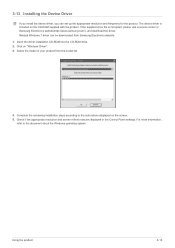
... from Samsung Electronics website. 1. Insert the driver installation CD-ROM into the CD-ROM drive. 2. Click on "Windows Driver". 3. Select the model of your product from the model list.
4. Complete the remaining installation steps according to the instructions displayed on the screen. 5. Check if the appropriate resolution and screen refresh rate are displayed in the Control Panel settings. For...
User Manual (user Manual) (ver.1.0) (English) - Page 48
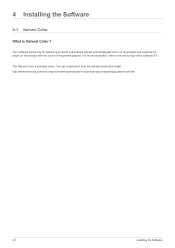
... Samsung products and enables adjusting the displayed colors on the product and matches the colors on the product with the colors of the printed pictures. For more information, refer to the online help of the software (F1).
The Natural Color is provided online. You can download it from the website below and install; http://www.samsung...
User Manual (user Manual) (ver.1.0) (English) - Page 49
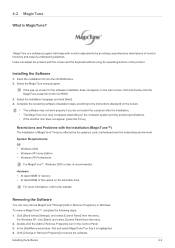
...;)
The installation of MagicTune™may be affected by the graphics card, motherboard and the networking environment.
System Requirements OS • Windows 2000 • Windows XP Home Edition • Windows XP Professional
For MagicTune™, Windows 2000 or later is recommended.
Hardware • At least 32MB of memory • At least 60MB of free space on the hard disk drive
For...
User Manual (user Manual) (ver.1.0) (English) - Page 50
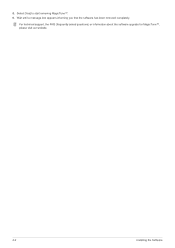
5. Select [Yes] to start removing MagicTune™. 6. Wait until a message box appears informing you that the software has been removed completely.
For technical support, the FAQ (frequently asked questions) or information about the software upgrade for MagicTune™, please visit our website.
4-2
Installing the Software
User Manual (user Manual) (ver.1.0) (English) - Page 51
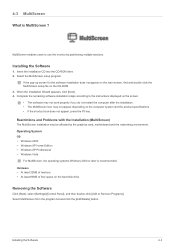
... installation may be affected by the graphics card, motherboard and the networking environment. Operating System OS • Windows 2000 • Windows XP Home Edition • Windows XP Professional • Windows Vista
For MultiScreen, the operating systems Windows 2000 or later is recommended. Hardware • At least 32MB of memory • At least 60MB of free space on the hard disk drive...
User Manual (user Manual) (ver.1.0) (English) - Page 54
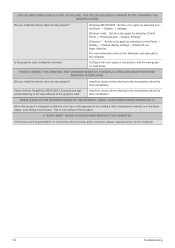
... Control Panel → Display→ Change display settings→ Advanced settings→Monitor.
For more information,refer to the Windows user manual for the computer.
Configure the color again in accordance with the new graphics card driver.
WHEN I CONNECT THE MONITOR, THE 'UNKNOWN MONITOR, PLUG&PLAY (VESA DDC) MONITOR FOUND' MESSAGE IS DISPLAYED.
Did you install the device driver...
User Manual (user Manual) (ver.1.0) (Korean) - Page 32
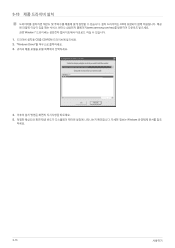
3-13
CD www.samsung.com/sec Window 7 1 CD를 CD-ROM 2. "Windows Driver 3
4 5 Windows
하세요.
3-13
사용하기