
Dell Inspiron One 2305 driver and firmware
Related Dell Inspiron One 2305 Manual Pages
Download the free PDF manual for Dell Inspiron One 2305 and other Dell manuals at ManualOwl.com
Setup Guide - Page 19
Setting Up Your Inspiron One
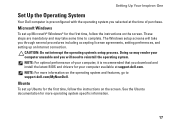
Set Up the Operating System
Your Dell computer is preconfigured with the operating system you selected at the time of purchase.
Microsoft Windows
To set up Microsoft® Windows® for the first time, follow the instructions on the screen. These steps are mandatory and may take some time to complete. The Windows setup screens will take you...
Setup Guide - Page 20
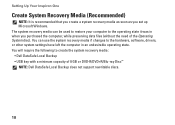
... the hardware, software, drivers, or other system settings have left the computer in an undesirable operating state. You will require the following to create the system recovery media: • Dell DataSafe Local Backup • USB key with a minimum capacity of 8 GB or DVD-R/DVD+R/Blu-ray Disc™ NOTE: Dell DataSafe Local Backup does not support rewritable discs.
18
Setup Guide - Page 24
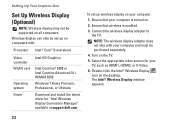
... computers with:
Processor Intel® Core™ i3 and above
Video controller WLAN card
Operating system
Intel HD Graphics
Intel Centrino® 6200 or Intel Centrino Advanced-N + WiMAX 6250 Windows 7 Home Premium, Professional, or Ultimate
Driver
Download and install the latest driver for "Intel Wireless Display Connection Manager" available at support.dell.com.
To set up wireless display...
Setup Guide - Page 38
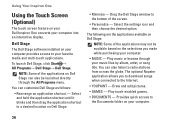
...The touch screen feature on your Dell Inspiron One converts your computer into an interactive display.
Dell Stage
The Dell Stage software installed on your computer provides access to your favorite media and multi-touch applications.
To launch Dell Stage, click Start → All Programs→ Dell Stage→ Dell Stage.
NOTE: Some of the applications on Dell Stage can also be launched directly...
Setup Guide - Page 42
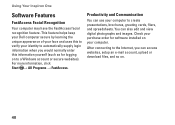
...; FastAccess.
Productivity and Communication
You can use your computer to create presentations, brochures, greeting cards, fliers, and spreadsheets. You can also edit and view digital photographs and images. Check your purchase order for software installed on your computer.
After connecting to the Internet, you can access websites, setup an e-mail account, upload or download files, and so on.
40
Setup Guide - Page 43
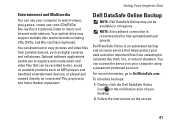
... download or copy pictures and video files from portable devices, such as digital cameras and cell phones. Optional software applications enable you to organize and create music and video files that can be recorded to disc, saved on portable products such as MP3 players and handheld entertainment devices, or played and viewed directly on connected TVs, projectors, and home theater equipment.
Dell...
Setup Guide - Page 52
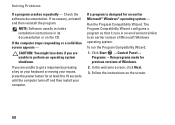
... Compatibility Wizard configures a program so that it runs in an environment similar to an earlier version of Microsoft Windows operating system.
To run the Program Compatibility Wizard:
1. Click Start → Control Panel→ Programs→ Run programs made for previous versions of Windows.
2. In the welcome screen, click Next.
3. Follow the instructions on the screen.
50
Setup Guide - Page 53
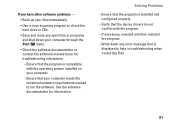
... requirements needed to run the software. See the software documentation for information.
Solving Problems
--Ensure that the program is installed and configured properly.
--Verify that the device drivers do not conflict with the program.
--If necessary, uninstall and then reinstall the program.
--Write down any error message that is displayed to help in troubleshooting when contacting Dell.
51
Setup Guide - Page 54
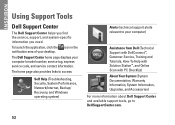
...Network/Internet, Backup/ Recovery, and Windows operating system)
Alerts (technical support alerts relevant to your computer)
Assistance from Dell (Technical Support with DellConnect™, Customer Service, Training and Tutorials, How-To Help with Solution Station™, and Online Scan with PC CheckUp)
About Your System (System Documentation, Warranty Information, System Information, Upgrades...
Setup Guide - Page 55
Using Support Tools
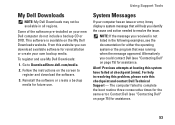
My Dell Downloads
NOTE: My Dell Downloads may not be available in all regions.
Some of the software pre-installed on your new Dell computer do not include a backup CD or DVD. This software is available on the My Dell Downloads website. From this website you can download available software for reinstallation or create your own backup media.
To register and use...
Setup Guide - Page 58
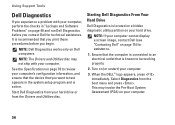
... the device that you want to test appears in the system setup program and is active.
Start Dell Diagnostics from your hard drive or from the Drivers and Utilities disc.
Starting Dell Diagnostics From Your Hard Drive
Dell Diagnostics is located on a hidden diagnostic utility partition on your hard drive.
NOTE: If your computer cannot display a screen image, contact Dell (see "Contacting Dell...
Setup Guide - Page 59
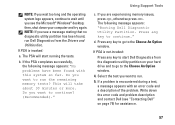
Using Support Tools
NOTE: If you wait too long and the operating system logo appears, continue to wait until you see the Microsoft® Windows® desktop; then, shut down your computer and try again. NOTE: If you see a message stating that no diagnostic utility partition has been found, run Dell Diagnostics from the Drivers and Utilities...
Setup Guide - Page 65
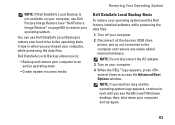
...
To restore your operating system and the Dell factory-installed software while preserving the data files:
1. Turn off your computer.
2. Disconnect all the devices (USB drive, printer, and so on) connected to the computer and remove any newly added internal hardware.
NOTE: Do not disconnect the AC adapter.
3. Turn on your computer.
4. When the DELL™ logo appears, press several times to...
Setup Guide - Page 67
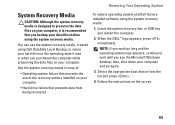
... system failure that prevents the use of the recovery options installed on your computer.
• Hard drive failure that prevents data from being recovered.
To restore operating system and Dell factoryinstalled software using the system recovery media:
1. Insert the system recovery disc or USB key and restart the computer.
2. When the DELL™ logo appears, press immediately.
NOTE: If you...
Setup Guide - Page 69
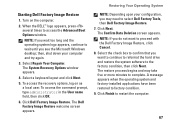
... and the operating system logo appears, continue to wait until you see the Microsoft Windows desktop; then, shut down your computer and try again.
3. Select Repair Your Computer. The System Recovery Options window appears.
4. Select a keyboard layout and click Next.
5. To access the recovery options, log on as a local user. To access the command prompt, type administrator...
Setup Guide - Page 78
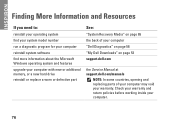
... software find more information about the Microsoft Windows operating system and features
upgrade your computer with new or additional memory, or a new hard drive reinstall or replace a worn or defective part
See:
"System Recovery Media" on page 65 the back of your computer "Dell Diagnostics" on page 56 "My Dell Downloads" on page 53 support.dell.com
the Service Manual at support.dell.com/manuals...
Setup Guide - Page 79
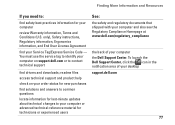
... Agreement
find your Service Tag/Express Service Code - You must use the service tag to identify your computer on support.dell.com or to contact technical support
find drivers and downloads; readme files
access technical support and product help
check on your order status for new purchases
find solutions and answers to common questions
locate information for last-minute updates about technical...
Setup Guide - Page 80
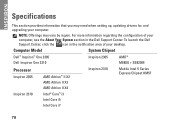
... when setting up, updating drivers for, and upgrading your computer.
NOTE: Offerings may vary by region. For more information regarding the configuration of your computer, see the About Your System section in the Dell Support Center. To launch the Dell Support Center, click the icon in the notification area of your desktop.
Computer Model
System Chipset
Dell™ Inspiron™ One 2305 Dell...
Service Manual - Page 14
... You Begin
Dell™ Inspiron™ One 2305/2310 Service Manual Recommended Tools Turning Off Your Computer Safety Instructions
This manual provides procedures for removing and installing the components in your computer. Unless otherwise noted, each procedure assumes that the following conditions exist:
l You have performed the steps in Turning Off Your Computer and Safety Instructions. l You...
Service Manual - Page 16
Back to Contents Page
Flashing the BIOS
Dell™ Inspiron™ One 2305/2310 Service Manual
The BIOS may require flashing when an update is available or when replacing the system board. To flash the BIOS:
1. Turn on the computer. 2. Go to support.dell.com/support/downloads. 3. Locate the BIOS update file for your computer:
NOTE: The Service Tag for your computer is located on a label at the ...