
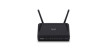
D-Link DIR-605 driver and firmware
Related D-Link DIR-605 Manual Pages
Download the free PDF manual for D-Link DIR-605 and other D-Link manuals at ManualOwl.com
User Manual - Page 2
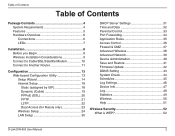
... Control 33 Port Forwarding 34 Application Rules 35 Access Control 36 Firewall & DMZ 37 Advanced Wireless 38 Advanced Network 39 Device Administration 40 Save and Restore 41 Firmware Update 42 DDNS Setting 43 System Check 44 Schedules 45 Log Settings 46 Device Info 47 Log 48 Statistics 49 Wireless 50 Help 51
Wireless Security 52 What is WEP 52
D-Link DIR-605 User Manual...
User Manual - Page 3
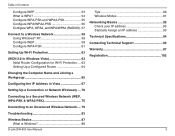
... Up a Configured Router 64
Changing the Computer Name and Joining a Workgroup 65
Configuring the IP Address in Vista 67
Setting Up a Connection or Network Wirelessly..... 70
Connecting to a Secured Wireless Network (WEP, WPA-PSK & WPA2-PSK 75
Connecting to an Unsecured Wireless Network..... 79
Troubleshooting 83
Wireless Basics 87 What is Wireless 88
D-Link DIR-605 User Manual
Tips 90...
User Manual - Page 4
... inserting the power cord and connected power supply to the wall outlet.
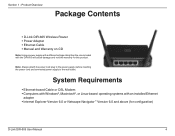
System Requirements
• Ethernet-based Cable or DSL Modem • Computers with Windows®, Macintosh®, or Linux-based operating systems with an installed Ethernet
adapter • Internet Explorer Version 6.0 or Netscape Navigator™ Version 6.0 and above (for configuration)
D-Link DIR-605 User Manual
4
User Manual - Page 8
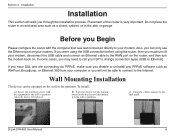
... on the wall or the partition. To install,
A). Screw the provided screws with the equipment to the wall or partition
where the device to be placed.
B). Turn the device, let the bottom toward to the fixed screws then mount
it in the wall or partition.
C). Using the cables connect to the back panel.
D-Link DIR-605 User Manual
8
User Manual - Page 9
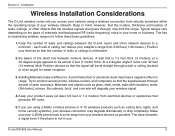
... you are using 2.4GHz cordless phones or X-10 (wireless products such as ceiling fans, lights, and home security systems), your wireless connection may degrade dramatically or drop completely. Make sure your 2.4GHz phone base is as far away from your wireless devices as possible. The base transmits a signal even if the phone in not in use.
D-Link DIR-605 User Manual
9
User Manual - Page 10
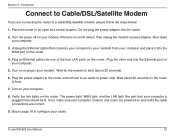
... the router to boot.
7. Turn on your computer.
8. Verify the link lights on the router. The power light, WAN light, and the LAN light (the port that your computer is plugged into) should be lit. If not, make sure your computer, modem, and router are powered on and verify the cable connections are correct.
9. Skip to page 16 to configure your router.
D-Link DIR-605 User Manual
10
User Manual - Page 11
... below:
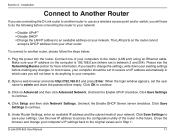
1. Plug the power into the router. Connect one of your computers to the router (LAN port) using an Ethernet cable. Make sure your IP address on the computer is 192.168.0.xxx (where xxx is between 2 and 254). Please see the Networking Basics section for more information. If you need to change the settings, write down your existing settings before making any...
User Manual - Page 12
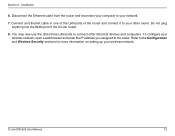
... anything into the WAN port of the D-Link router.
8. You may now use the other three LAN ports to connect other Ethernet devices and computers. To configure your wireless network, open a web browser and enter the IP address you assigned to the router. Refer to the Configuration and Wireless Security sections for more information on setting up your wireless network.
D-Link DIR-605 User Manual
12
User Manual - Page 14
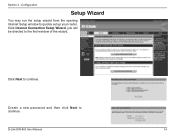
Section 3 - Configuration
Setup Wizard
You may run the setup wizard from the opening Internet Setup window to quickly set up your router. Click Internet Connection Setup Wizard, you will be directed to the first window of the wizard.
Click Next to continue.
Create a new password and then click Next to continue.
D-Link DIR-605 User Manual
14
User Manual - Page 16
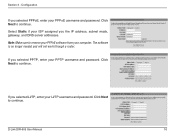
..., and DNS server addresses. Note: Make sure to remove your PPPoE software from your computer. The software is no longer needed and will not work through a router.
If you selected PPTP, enter your PPTP username and password. Click Next to continue.
If you selected L2TP, enter your L2TP username and password. Click Next to continue.
D-Link DIR-605 User Manual
16
User Manual - Page 19
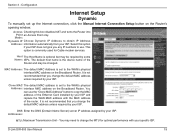
... that you change the default MAC address unless required by your ISP.
Clone MAC The default MAC address is set to the WAN's physical Address: interface MAC address on the Broadband Router. You can use the "Clone MAC Address" button to copy the MAC address of the Ethernet Card installed by your ISP and replace the WAN MAC address with the MAC address of the router. It is not recommended that...
User Manual - Page 39
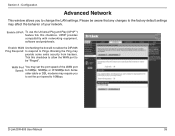
.... Blocking the Ping may
provide some extra security from hackers. Tick this checkbox to allow the WAN port to be "Pinged".
WAN Port You may set the port speed of the WAN port Speed: to 10Mbps, 100Mbps, or 10/100Mbps Auto. Some older cable or DSL modems may require you to set the port speed to 10Mbps.
D-Link DIR-605 User Manual
39
User Manual - Page 42
....
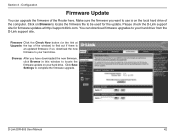
Firmware Click the Check Now button (or the link at Upgrade: the top of the window) to find out if there is
an updated firmware; if so, download the new firmware to your hard drive.
Browse: After you have downloaded the new firmware, click Browse in this window to locate the firmware update on your hard drive. Click Save Settings to complete the firmware upgrade.
D-Link DIR-605 User Manual
42
User Manual - Page 63
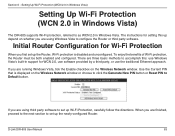
... that is displayed on the Wireless Network window or choose to click the Generate New PIN button or Reset PIN to Default button.
If you are using third party software to set up Wi-Fi Protection, carefully follow the directions. When you are finished, proceed to the next section to set up the newly-configured Router.
D-Link DIR-605 User Manual
63
User Manual - Page 64
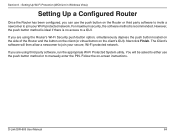
... Finish. The Client's software will then allow a newcomer to join your secure, Wi-Fi protected network.
If you are using third party software, run the appropriate Wi-Fi Protected System utility. You will be asked to either use the push button method or to manually enter the PIN. Follow the on-screen instructions.
D-Link DIR-605 User Manual
64
User Manual - Page 83
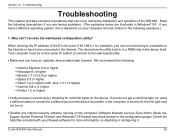
... not be on.
• Disable any internet security software running on the computer. Software firewalls such as Zone Alarm, Black Ice, Sygate, Norton Personal Firewall, and Windows® XP firewall may block access to the configuration pages. Check the help files included with your firewall software for more information on disabling or configuring it.
D-Link DIR-605 User Manual
83
User Manual - Page 92
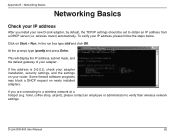
... address is 0.0.0.0, check your adapter installation, security settings, and the settings on your router. Some firewall software programs may block a DHCP request on newly installed adapters.
If you are connecting to a wireless network at a hotspot (e.g. hotel, coffee shop, airport), please contact an employee or administrator to verify their wireless network settings.
D-Link DIR-605 User Manual...
User Manual - Page 96
...) • Serial Number (s/n number located on the label on the bottom of the router).
You can find software updates and user documentation on the D-Link website as well as frequently asked questions and answers to technical issues.
For customers within the United States:
Phone Support: (877) 453-5465
24 hours a day, seven days a week.
Internet Support: http://support.dlink.com
support@dlink...
User Manual - Page 98
... customer must obtain a Return Material Authorization ("RMA") number by completing the RMA form and entering the assigned Case ID Number at https://rma.dlink.com/.
D-Link DIR-605 User Manual
98
User Manual - Page 99
... installation, installation and removal of the product for repair, and shipping costs; Operational adjustments covered in the operating manual for the product, and normal maintenance; Damage that occurs in shipment, due to act of God, failures due to power surge, and cosmetic damage; Any hardware, software, firmware or other products or services provided by anyone other than D-Link...