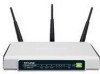
We have a direct link to download TP-Link TD-W8901G drivers, firmware and other resources directly from the
TP-Link site. To protect our site from spammers you will need to enter the verification characters below in order to
access the download link.
Quick Installation Guide - Page 9
... before releasing it. Press it for 8 to 10 seconds Note Once the Router is reset, the current configuration settings will be lost and you ... I don't know or forgot my password? 1) 2) 3) Restore the Router's configuration to its factory default settings. If you don... web-based configuration page? 1) Configure your computer's IP Address. For Windows XP OS
Go to Start > Control Panel, you will then see ...
Quick Installation Guide - Page 16
Technical Support
For more troubleshooting help, go to www.tp-link.com/support/faq.asp To download the latest Firmware, Driver, Utility and User Guide, go to www.tp-link.com/support/download.asp For all other technical support, ... a week Australia & New Zealand Tel: AU 1300 87 5465 NZ 0800 87 5465 E-mail: support@tp-link.com.au Service time: Monday to ...
User Guide - Page 3
...communications. However, there is no guarantee that interference will not occur in a particular installation. If this equipment does cause harmful interference to radio or television...exposure compliance requirements, this grant is applicable to only Mobile Configurations. The antennas used for this transmitter must be installed to provide a separation distance of at least 20 cm from all persons and...
User Guide - Page 8
Package Contents
The following contents should be found in your package: One TD-W8901G 54M Wireless ADSL2+ Modem Router One DC power Adapter for TD-W8901G 54M Wireless ADSL2+ Modem Router Quick Installation Guide One RJ45 cable Two RJ11 cables One ADSL splitter One Resource CD, including: This User Guide Other Helpful Information Note:...
User Guide - Page 9 TD-W8901G 54M Wireless ADSL2+ Modem Router User Guide
Chapter 1 Introduction
Thank you for choosing the TD-W8901G 54M Wireless ADSL2+ Modem Router.
1.1
Product Overview
The ... private Ethernet or 802.11g/802.11b wireless network. The TD-W8901G connects to an EthernetLAN or computers via standard ... The Router provides wirelessLAN 64/128-bit WEP encryption security, WPA-PSK/WPA2-PSK...
User Guide - Page 10 TD-W8901G 54M Wireless ADSL2+ Modem Router User Guide Internet when idle. Provides reliable ESD and surge-protect function with ..., TKIP/AES encryption security. Provides 64/128-bit WEP encryption security and wirelessLAN ACL (Access Control List).
1.3
Conventions
The Router or device mentioned in this User guide stands for TD-W8901G without any explanations. Parameters provided in the pictures ...
User Guide - Page 11 TD-W8901G 54M Wireless ADSL2+ Modem Router User Guide
Chapter 2 Hardware Installation
2.1 The Front Panel
Figure 2-1 The LEDs locate on the front panel, ... is enabled but no data is being transmitted. There is wireless data being transmitted. The wireless function is disabled. Data is being transferred over the 1-4 (LAN) port. There is a successful connection on the corresponding 1-4 (LAN...
User Guide - Page 12 TD-W8901G 54M Wireless ADSL2+ Modem Router User Guide
2.2
The Back Panel
Figure 2-2 POWER: The Power plug is where you will connect the power adapter. ... can connect them by an external separate splitter. For details, please refer to 2.4. Antenna: Used for wireless operation and data transmit.
2.3
Installation Environment
The Product should not be located where it will be exposed to moisture ...
User Guide - Page 13 TD-W8901G 54M Wireless ADSL2+ Modem Router User Guide
2.4
Connecting the Router
Before installing the device, please make sure your broadband service provided by your ISP is... cable to your computer's Ethernet port or a regular hub/switch port, and the other end to the LAN port on the TD-W8901G. Step 3: Power on the computers and LAN devices. Step 4: Attach the power adapter. Connect the power ...
User Guide - Page 15 TD-W8901G 54M Wireless ADSL2+ Modem Router User Guide
Chapter 3 Quick Installation Guide
3.1 Configure PC
After you directly connect your PC to the TD-W8901G or connect your adapter to a Hub/Switch which has connected to the Router, you need to configure your PC's IP address. Follow the steps below to configure it.
Step 1: Click the Start menu on your desktop, right click My Network Places, ...
User Guide - Page 22 TD-W8901G 54M Wireless ADSL2+ Modem Router User Guide
Chapter 4 Software Configuration
This User Guide recommends using the "Quick Installation Guide" for first-time installation. For advanced users, if you want to know more about this device and make use of its functions adequately, maybe you will get help from this chapter to configure the advanced settings through the Web-based Utility. ...
User Guide - Page 31 TD-W8901G 54M Wireless ADSL2+ Modem Router User Guide automatically. And once there is traffic send or receive, the connection will be automatically on. Static/Dynamic IP Address: For PPPoE/PPPoA connection, you need to specify the public IP address for this ADSL Router. The IP address can be either dynamically (via DHCP) or given IP address provided by your ISP. For Static IP, you need to ...
User Guide - Page 33 TD-W8901G 54M Wireless ADSL2+ Modem Router User Guide The Router will work as a DHCP Server; it becomes the default gateway ...192.168.1.2, and the Start IP Address must be 192.168.1.2 or greater, but smaller than 192.168.1.254. • • IP ... DHCP client. IP Address: Display the IP Address of the DHCP client. MACAddress: Display the MACAddress of the DHCP client. Status: Display the status ...
User Guide - Page 34 TD-W8901G 54M Wireless ADSL2+ Modem Router User Guide 1). Select an IP Address from the drop-down list. 2). Enter the MACAddress of the client in the table. • DNS Relay: If you want to disable this feature, you just need to set both Primary and secondary DNS IP to 0.0.0.0. If you want to use DNS relay, you can setup DNS server IP to 192.168.1.1 on their Computer. If not, the device will ...
User Guide - Page 36 TD-W8901G 54M Wireless ADSL2+ Modem Router User Guide Clear to Send (CTS) frame to... Address Filter: Wireless access can be filtered by using the MACaddresses of the wireless devices transmitting within your network's RADIUS ...: To filter wireless users by MACAddress, select "Allow Association" or "Deny Association" the follow WirelessLAN station(s) association. MACAddress: Enter the MACAddress ...
User Guide - Page 45 TD-W8901G 54M Wireless ADSL2+ Modem Router User Guide Rule: Configure the rules for QoS. If the traffic complies with the rule, then the Router will take the corresponding action to deal with it Rule Index: Select the index for the rule you want to configure. Active: Activate the rule. The rule can take effect only when it is activated. Application: Select the application that the rule aimed at...
User Guide - Page 61 TD-W8901G 54M Wireless ADSL2+ Modem Router User Guide Note: The ADSL Router built-in some NTP Servers, when the ... current time.
Figure 4-46
4.6.3 Firmware
Choose "Maintenance→Firmware", you can upgrade the firmware of the Router in the screen (shown in Figure 4-47). Make sure ... local hard drive of the computer. Click Browse to find the local hard drive and locate the firmware or romfile 54
User Guide - Page 62 TD-W8901G 54M Wireless ADSL2+ Modem Router User Guide to be used for upgrade.
Figure 4-47 To ..., follow these instructions below: Step 1: Download a more recent firmwareupgrade file from the TP-LINK website (www.tp-link.... the update file. Step 3: Click the UPGRADE button. Note: 1) New firmwareversions are posted at www.tp-link.com and can be downloaded for free. If the router is not experiencing ...
User Guide - Page 63 TD-W8901G 54M Wireless ADSL2+ Modem Router User Guide
Figure 4-48 Step 2: Save the file as the appointed file (shown in Figure 4-49).
Figure 4-49 To restore the Router's settings: Step 1: Click the Browse button to locate the update file for the device, or enter the exact path in "New Romfile Location" field. Step 2: Click the UPGRADE button to complete.
4.6.4 System Restart
Choose "...